
Opening a Support Ticket
Kora handles most common tasks instantly, but some situations need a human. This guide explains how to reach the support team and how to write a ticket that gets resolved quickly.
When to Open a Ticket vs Use Kora
Use Kora first for:
- Diagnosing and fixing site errors.
- Creating or restoring backups.
- DNS and SSL questions.
- Plugin and PHP version changes.
- Any task that involves your site or account settings.
Kora can resolve the majority of technical issues within minutes, without any waiting. Open the Kora chat from the bottom-right corner of KPanel and describe your problem. If Kora cannot resolve it, it can create a support ticket on your behalf with the diagnostic context already filled in.
Open a support ticket for:
- Billing disputes or unexpected charges.
- Account access issues you cannot resolve through the login flow (for example, lost 2FA with no recovery codes).
- Situations requiring human judgment or policy decisions.
- Complex migrations or technical setups you want guidance on.
- Anything Kora has diagnosed but cannot fix.
- Security incidents or suspected account compromise.
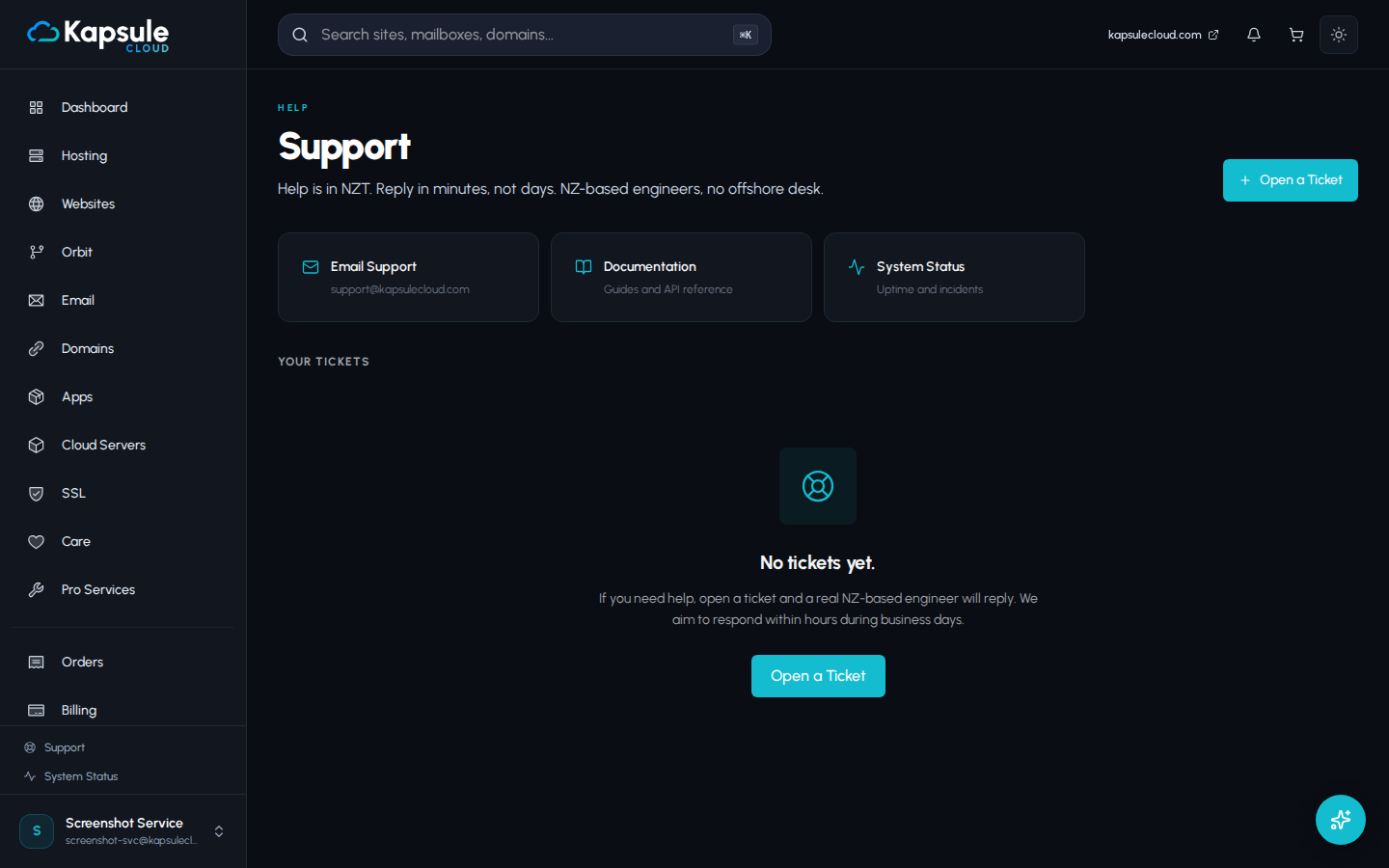
How to Open a Ticket in KPanel
- Log in to KPanel at kpanel.kapsulecloud.com.
- Click Support in the left sidebar.
- Click Open a Ticket.
- Select a Priority (see below).
- Enter a subject line (short, descriptive, for example: "SSL certificate not renewing on example.com").
- Fill in the ticket body with as much detail as possible (see What to Include below).
- Click Send Ticket.
You will receive a confirmation email when your ticket is submitted. All replies will arrive at the email address on your KPanel account.
What to Include in Your Ticket
A well-written ticket gets a faster resolution because the support team does not need to ask follow-up questions. Include:
- The domain or site name the issue relates to.
- A clear description of the problem. What are you trying to do? What is happening instead?
- The exact error message, copied as text or shown in a screenshot. Do not paraphrase errors.
- What you have already tried. This prevents the team from suggesting steps you have already taken.
- When the issue started. The more precise, the better ("around 2pm today" is more useful than "recently").
- Whether the issue is intermittent or constant.
- Your IP address if the issue involves access or firewall problems (visit whatismyip.com).
Priority Levels
| Priority | When to Use | Target First Response |
|---|---|---|
| Normal | General questions, non-urgent issues, anything that is not breaking your live site | Within 4 business hours |
| High | Live site is completely down, billing emergency, time-sensitive issue | Within 1 business hour |
| Critical | Active data loss, confirmed security breach, unauthorised access in progress | As fast as possible |
Please use Critical priority only for genuine emergencies involving data loss or active security incidents. Misuse of Critical priority delays responses for customers with real emergencies.
What to Expect After Submitting
- You will receive an automated confirmation email with your ticket number.
- A support team member will review your ticket and reply within the time frame for your selected priority.
- Replies come via email and are also visible in KPanel > Support > Ticket History.
- Respond to a ticket by replying to the email or by clicking the ticket in KPanel and adding a reply.
- When your issue is resolved, you can close the ticket from KPanel or by replying to the email with "resolved". The team may also close it after resolution if there is no response for several days.
Ticket History
All past and current tickets are in KPanel > Support > Ticket History. You can:
- View the full conversation for any ticket.
- Reopen a closed ticket if the issue recurs.
- Reference previous tickets when opening a new one.
Email Support
You can also contact support directly at support@kapsulecloud.com. Email tickets are handled with Normal priority unless you specify otherwise in the subject line.
Business Hours and Time Zones
The Kapsule Cloud support team operates on New Zealand Standard Time (NZST, UTC+12) in winter and New Zealand Daylight Time (NZDT, UTC+13) in summer.
Business hours are Monday to Friday, 9am to 6pm NZST/NZDT.
High and Critical priority tickets are monitored outside business hours. Normal priority tickets received outside business hours will be actioned on the next business day.
If you are unsure of the current time in New Zealand, search "current time New Zealand" in any search engine or use a time zone converter.