
Connecting via SFTP: FileZilla, Cyberduck, and Command Line
SFTP (Secure File Transfer Protocol) gives you direct access to your site's files on the server. This guide covers everything you need to connect successfully, from finding your credentials to troubleshooting errors.
What SFTP Is and When to Use It
The file manager built into KPanel is convenient for quick edits: renaming a file, viewing a config, or uploading a single asset. SFTP is the right tool when you need more:
- Uploading or downloading large numbers of files at once (migrating a site, bulk-uploading images).
- Transferring large files that would time out in a browser-based upload.
- Working as part of a development workflow where you edit files locally and push changes.
- Using a GUI client that lets you keep a local and remote folder in sync.
- Accessing logs or configuration files that are not exposed through KPanel's file manager.
SFTP encrypts all data in transit, which makes it more secure than plain FTP. Kapsule Cloud does not offer unencrypted FTP connections.
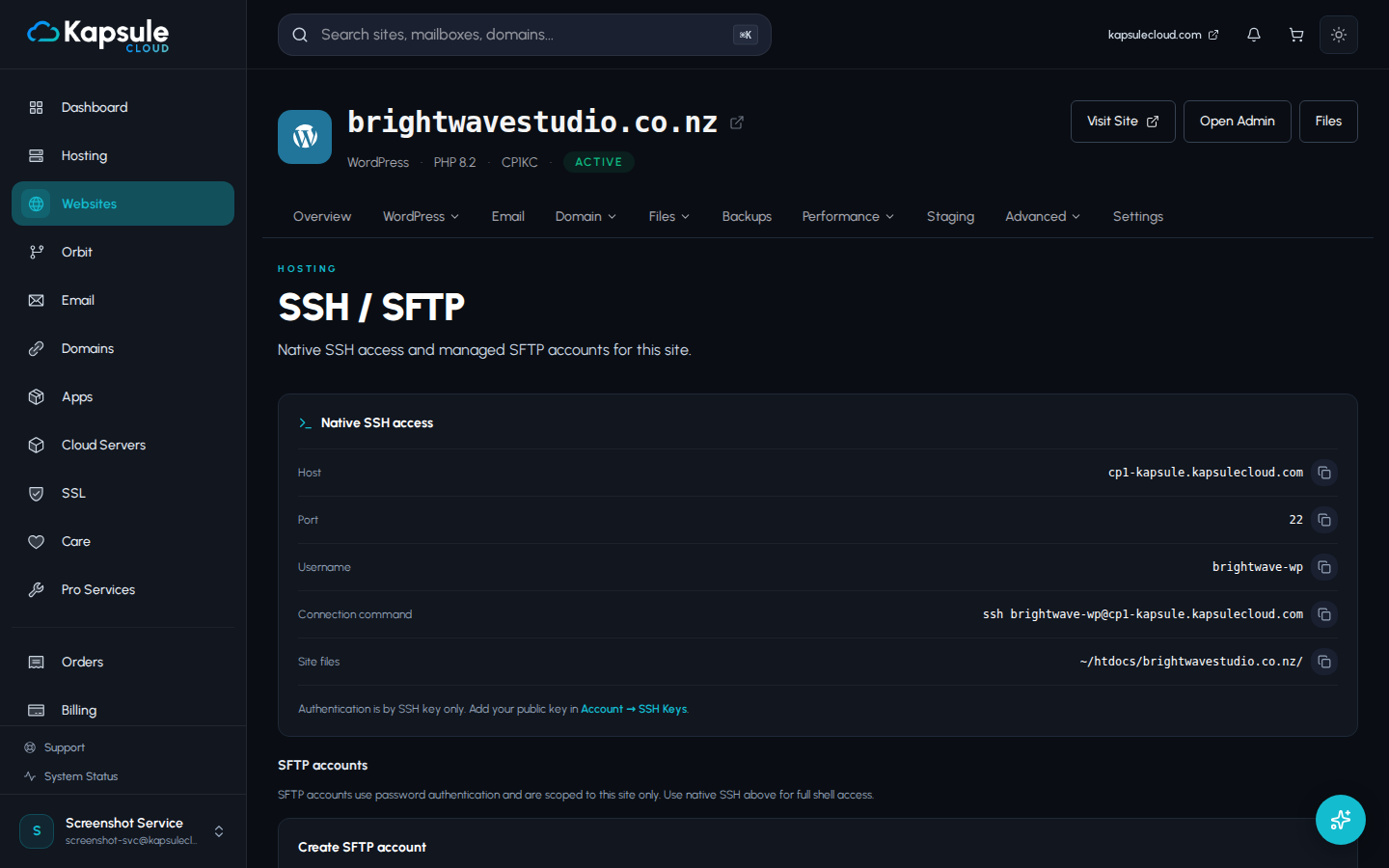
Prerequisites
Before you can connect, you need two things in place.
1. An SSH key added to your site in KPanel.
SFTP on Kapsule Cloud uses SSH key authentication. Password authentication is disabled for security. If you have not yet added your SSH public key, follow the Adding SSH Keys to Your Site guide first, then return here.
2. Your site username.
Each site on Kapsule Cloud has a dedicated system user. This is not your KPanel email address. It is a short username tied specifically to that site.
To find it:
- Log in to KPanel at kpanel.kapsulecloud.com.
- Click Websites in the left sidebar.
- Click the site you want to connect to.
- Go to the SSH / SFTP page.
- Your site username is shown at the top of this tab. It typically looks like
mysite_comormyexamplesite_net.
Connection details at a glance:
| Field | Value |
|---|---|
| Host | cp1-kapsule.kapsulecloud.com |
| Port | 22 |
| Protocol | SFTP (not FTP, not FTPS) |
| Authentication | SSH key only |
| Username | Your site username (from KPanel > Websites > [site] > SSH / SFTP) |
Connecting with FileZilla
FileZilla is a free, cross-platform SFTP client available for Windows, macOS, and Linux. Download it from filezilla-project.org if you do not already have it.
Step-by-Step Setup
-
Open FileZilla.
-
Go to File > Site Manager (or press
Ctrl+Son Windows /Cmd+Son Mac). -
Click Add Website and give it a name (for example, "My Kapsule Site").
-
In the General tab, configure the following fields:
Field Value Protocol SFTP - SSH File Transfer Protocol Host cp1-kapsule.kapsulecloud.comPort 22Logon Type Key file User Your site username (for example, mysite_com)Key file Click Browse and navigate to your private key file -
For the key file, select the private key that corresponds to the public key you added in KPanel. On macOS and Linux, private keys are typically stored in
~/.ssh/(for example,~/.ssh/id_ed25519or~/.ssh/id_rsa). On Windows, they are often inC:\Users\YourName\.ssh\.
If your private key has a passphrase, FileZilla will prompt you to enter it when you connect. This is normal. The passphrase protects your private key file and is separate from any Kapsule password.
- Click Connect to test the connection, or click OK to save and connect later.
Saving and Reconnecting
Once saved in Site Manager, you can reconnect at any time by going to File > Site Manager and clicking Connect. FileZilla also shows your saved sites in the dropdown on the toolbar for quick access.
In FileZilla's Site Manager, check the Always trust this host checkbox the first time you connect to avoid the host key prompt on future connections.
Connecting with Cyberduck
Cyberduck is a free SFTP client for macOS and Windows. Download it from cyberduck.io.
Step-by-Step Setup
-
Open Cyberduck.
-
Click Open Connection (the globe icon in the toolbar).
-
From the protocol dropdown at the top of the dialog, select SFTP (SSH File Transfer Protocol).
-
Fill in the connection fields:
Field Value Server cp1-kapsule.kapsulecloud.comPort 22Username Your site username (for example, mysite_com)Password Leave blank SSH Private Key Click Choose and select your private key file -
Click Connect.
On first connection, Cyberduck will ask you to verify the server's host key fingerprint. Click Allow to proceed. If you see this prompt on a subsequent connection with a different fingerprint, do not accept it and contact support, as it may indicate a configuration change.
Saving as a Bookmark
To save the connection for future use:
- After connecting successfully, go to Bookmark > New Bookmark (or press
Cmd+Shift+Bon Mac). - Give the bookmark a name and close the dialog. The bookmark appears in your Cyberduck bookmark list.
Connecting from Terminal (Mac, Linux, or WSL)
If you prefer the command line, the sftp command is available on macOS, Linux, and Windows Subsystem for Linux (WSL).
Basic Connection
sftp mysite_com@cp1-kapsule.kapsulecloud.com
Replace mysite_com with your actual site username. If your private key is not in the default location (~/.ssh/id_rsa or ~/.ssh/id_ed25519), specify it with the -i flag:
sftp -i ~/.ssh/your_private_key mysite_com@cp1-kapsule.kapsulecloud.com
On first connection, you will be asked to confirm the server's host fingerprint. Type yes and press Enter. This only happens once per key per device.
Useful SFTP Commands
Once connected, you will see an sftp> prompt. Use these commands to navigate and transfer files:
| Command | What It Does |
|---|---|
ls | List files in the current remote directory |
lls | List files in the current local directory |
cd [dir] | Change directory on the remote server |
lcd [dir] | Change directory on your local machine |
pwd | Show current remote directory path |
lpwd | Show current local directory path |
get [file] | Download a file from remote to local |
get -r [dir] | Download a directory recursively |
put [file] | Upload a file from local to remote |
put -r [dir] | Upload a directory recursively |
rm [file] | Delete a file on the remote server |
mkdir [dir] | Create a directory on the remote server |
quit | Close the SFTP connection |
Example: downloading a file
sftp> cd htdocs/wp-content/themes
sftp> get my-theme.zip
Example: uploading a file
sftp> lcd ~/Desktop
sftp> cd htdocs/wp-content/uploads
sftp> put my-image.jpg
Where Your Files Are
After connecting, you will land in your site user's home directory: /home/[siteuser]/.
The directory structure looks like this:
/home/mysite_com/
├── htdocs/              ← Your web root (main location for site files)
│   ├── index.php
│   ├── wp-config.php
│   ├── wp-content/
│   │   ├── themes/
│   │   ├── plugins/
│   │   └── uploads/
│   └── ...
├── logs/                ← PHP and access logs
└── tmp/                 ← Temporary files
The web root where your WordPress (or other application) lives is htdocs/. This is the directory you will spend most of your time in. On some site configurations it may be named public_html/ instead. If you connect and see public_html/ rather than htdocs/, use that.
You can only access files belonging to your site user. You cannot navigate above /home/[siteuser]/ or access other customers' directories. This is by design.
Troubleshooting Connection Issues
"Connection refused"
The connection was actively rejected before it was established.
Check: Confirm you are using host cp1-kapsule.kapsulecloud.com and port 22. A common mistake is entering port 21 (which is FTP, not SFTP) or a typo in the hostname.
"Permission denied (publickey)"
The server accepted the connection attempt but rejected your authentication.
Check each of the following:
- Your SSH public key is added in KPanel > Websites > [site] > SSH / SFTP. If it is not listed there, the server has no record of it.
- You have selected the correct private key in FileZilla/Cyberduck, specifically the private key that pairs with the public key you added to KPanel.
- If your key has a passphrase, make sure you are entering it correctly.
- If you have multiple keys, confirm you are not accidentally selecting the wrong one.
"Host key verification failed"
Your SFTP client has seen a different host key for this hostname before and is warning you of a mismatch.
On first connection: You will be asked to accept the fingerprint. This is normal. Click Accept or type yes.
On a subsequent connection with a new fingerprint: This can indicate a configuration change on the server. Contact support at support@kapsulecloud.com before accepting, and mention what you saw.
To clear an old host key in the terminal, edit ~/.ssh/known_hosts and remove the line for cp1-kapsule.kapsulecloud.com.
"Could not read from remote repository" or Wrong Directory
You may have used your KPanel email address as the username instead of your site username.
Check: The username must be your site username (for example, mysite_com), not your email address. Find the correct username in KPanel > Websites > [site] > SSH / SFTP.
Connection Times Out
The connection attempt hangs and then times out without any error.
Possible causes:
- Your IP address may be temporarily blocked by Kapsule's firewall due to repeated failed login attempts. Contact support at support@kapsulecloud.com and ask them to check the firewall log.
- A local firewall or VPN on your network may be blocking outbound connections on port 22. Try from a different network (for example, mobile hotspot) to rule this out.