
My Website Is Not Loading: Diagnostic Checklist
Work through these steps in order. Each step either identifies the cause or rules it out. Most issues are resolved by step 5.
Step 1: Check Whether It Is Just You
Before troubleshooting your site or server, confirm that the problem is not local to your device or network.
How to check:
- Visit downforeveryoneorjustme.com and enter your domain. If it reports the site as up, the issue is on your end.
- Switch your phone from WiFi to mobile data and try loading the site. If it loads on mobile data, the issue is with your local network or WiFi router.
- Ask someone else (in a different location) to try loading your site.
If it is only you: Clear your DNS cache (see Step 3), restart your router, or try from a different network.
If it is down for everyone: Continue to Step 2.
Step 2: Check KPanel for Alerts or Maintenance Notices
Log in to KPanel at kpanel.kapsulecloud.com and check for any notices at the top of the dashboard.
Kapsule Cloud displays alerts for:
- Scheduled maintenance windows affecting your server.
- Active incidents that the team is already investigating.
- Notices specific to your account or site.
If there is an active incident, the support team is already working on it. You can monitor status updates from within KPanel.
If there are no alerts: Continue to Step 3.
Step 3: Clear Your Browser Cache and Try a Hard Refresh
A cached version of a broken page, expired redirect, or old SSL error can persist even after the underlying issue is fixed.
Hard refresh (clears cache for the current page):
- Windows/Linux:
Ctrl + Shift + R - Mac:
Cmd + Shift + R
Try a private/incognito window:
Private browsing ignores all cached data and cookies. Press Ctrl + Shift + N (Windows) or Cmd + Shift + N (Mac) in Chrome, or Ctrl + Shift + P in Firefox.
Clear all browser cache:
- Chrome: Settings > Privacy and Security > Clear browsing data > Cached images and files.
- Firefox: Settings > Privacy and Security > Cookies and Site Data > Clear Data.
- Safari: Develop > Empty Caches (enable Develop menu in Safari > Settings > Advanced first).
If clearing cache resolves it: The site is working. No further action needed.
If the site still does not load: Continue to Step 4.
Step 4: Check Your Domain Status in KPanel
An expired or misconfigured domain will make your site unreachable.
- Go to KPanel > Domains.
- Find your domain in the list.
- Check its status. A domain should show as Active. If it shows as Expired, Suspended, or Pending Renewal, that is your issue.
If the domain is expired: Renew it in KPanel > Domains. DNS propagation after renewal can take up to a few hours.
If the domain shows as Active: Continue to Step 5.
Step 5: Check DNS Configuration
Your domain needs to point to Kapsule's nameservers for your site to resolve. Propagation after a DNS change can take up to 48 hours, though it is usually much faster.
Check where your domain is pointed:
Use a tool like dnschecker.org or whatsmydns.net and enter your domain to check its nameservers.
Your domain should show Kapsule's nameservers. If it is showing nameservers from a different provider, the domain is not pointed to Kapsule Cloud.
In KPanel > Domains, confirm that:
- The domain is listed and active.
- The correct DNS records exist (particularly the A record pointing to your server's IP address).
If nameservers are wrong: Update them at your domain registrar to point to Kapsule's nameservers. Propagation will take up to 48 hours.
If nameservers are correct but the site still does not load: Continue to Step 6.
Step 6: Check Your SSL Certificate Status
If your SSL certificate has expired or failed to renew, browsers will block the site with a security warning rather than loading it. Visitors see errors such as "Your connection is not private" or "ERR_CERT_COMMON_NAME_INVALID".
- Go to KPanel > Websites > [your site].
- Look for an SSL or HTTPS status indicator.
- If the SSL certificate shows as Expired, Invalid, or Failed, that is your issue.
To reissue the certificate, click Renew SSL or Reissue Certificate in KPanel. Certificate issuance usually completes within 1 to 2 minutes.
SSL certificates can only be issued when DNS is correctly pointed to Kapsule's servers. If Step 5 revealed a DNS problem, fix that first, then reissue the SSL certificate.
If SSL looks fine: Continue to Step 7.
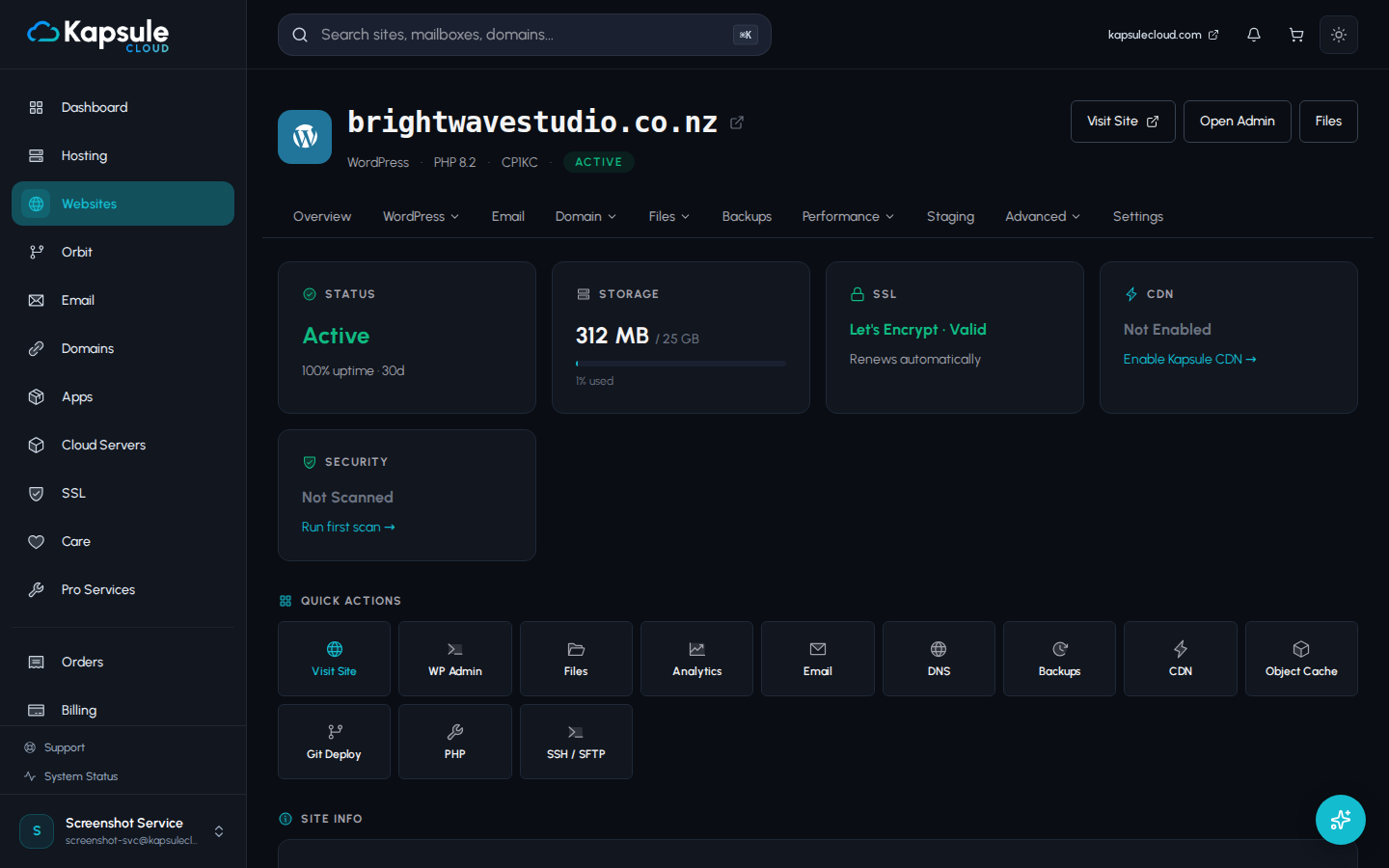
Step 7: Check Your Site Status in KPanel
- Go to KPanel > Sites.
- Find your site in the list and check its status indicator.
- A site should show as Running or Active. If it shows as Stopped, Suspended, or shows an error icon, click on the site for details.
If the site is stopped, you may be able to restart it directly from KPanel. If it is suspended due to a billing issue, go to KPanel > Billing to resolve the payment.
If the site shows as running but still does not load: Continue to Step 8.
Step 8: Check for a Recent Change
Think back to the last change made to the site. A broken update is one of the most common causes of a site going down.
Common culprits:
- A WordPress plugin or theme update.
- A PHP version change.
- A manual code edit.
- A database change.
- A new plugin installation.
If a recent change caused this: Restore from the backup you took before making the change. See Restoring Your Site from a Backup.
If you changed PHP version: Go to KPanel > Websites > [site] > PHP and revert to the previous version. This takes effect immediately.
If you are not sure what changed: Continue to Step 9.
Step 9: Check Site Logs for PHP or Application Errors
Application-level errors (PHP fatal errors, database connection failures, misconfigured environment variables) will be recorded in your site's logs.
- Go to KPanel > Websites > [your site].
- Click the Logs tab.
- Look for recent error entries. PHP fatal errors typically include a filename and line number, which identifies exactly which plugin or code is failing.
Common log errors and their meanings:
| Error | Likely Cause |
|---|---|
Fatal error: Call to undefined function | Plugin or theme code not compatible with current PHP version |
Access denied for user ... to database | Database credentials are wrong or the database is unavailable |
Maximum execution time exceeded | A process is hanging, often a plugin with a slow external API call |
No space left on device | Storage quota exceeded |
syntax error | A code file has a syntax problem, often from a manual edit |
If you see a storage-related error, go to KPanel > Storage to check your usage. Clearing cache files or removing unused uploads can free up space quickly.
Still Not Resolved? Contact Support
If you have worked through all 9 steps and the site is still not loading, contact support with the following information. The more detail you provide, the faster the issue can be diagnosed:
- Your domain name
- The exact error message (copy the text or take a screenshot)
- What you see in each step you completed above
- When the issue started (the more precise, the better)
- Any changes made around the time the issue started
- Your IP address (visit whatismyip.com to find it)
Contact support at support@kapsulecloud.com or open a ticket in KPanel > Support > New Ticket.