
Changing Your PHP Version
PHP is the programming language that powers WordPress and most other web applications hosted on Kapsule Cloud. The version your site runs on affects both compatibility with plugins and themes, and overall performance.
Why PHP Version Matters
Compatibility: WordPress plugins and themes are written to work with specific versions of PHP. Older plugins may not support newer PHP versions, and newer plugins may no longer work on old PHP versions.
Performance: Newer PHP versions are faster. Moving from PHP 8.1 to PHP 8.2, for example, produces a measurable improvement in response times for most WordPress sites.
Security: Older PHP versions eventually reach end-of-life and stop receiving security patches. Running an end-of-life PHP version exposes your site to unpatched vulnerabilities.
Available PHP Versions
Kapsule Cloud currently supports the following PHP versions:
- PHP 8.1
- PHP 8.2 (recommended for most sites)
- PHP 8.3 (recommended for new sites and well-maintained plugin stacks)
- PHP 8.4
For most WordPress sites in 2026, PHP 8.2 or 8.3 is the recommended choice. These versions offer the best balance of compatibility with current plugins and performance improvements. PHP 8.4 is suitable if you have confirmed your plugins and theme support it.
Before You Change PHP Version
Always create a manual backup of your site before changing the PHP version. If a plugin or theme is incompatible with the new version, your site may display errors or go blank. A backup lets you restore quickly. See Taking a Manual Backup for instructions.
Before upgrading, check that your key plugins and theme are compatible:
- Visit wordpress.org/plugins and search for each of your critical plugins.
- Check the plugin's page for the "Requires PHP" and "Tested up to" information.
- If a plugin has not been updated in over a year and has no stated PHP 8.x compatibility, check the support forum for reports of issues.
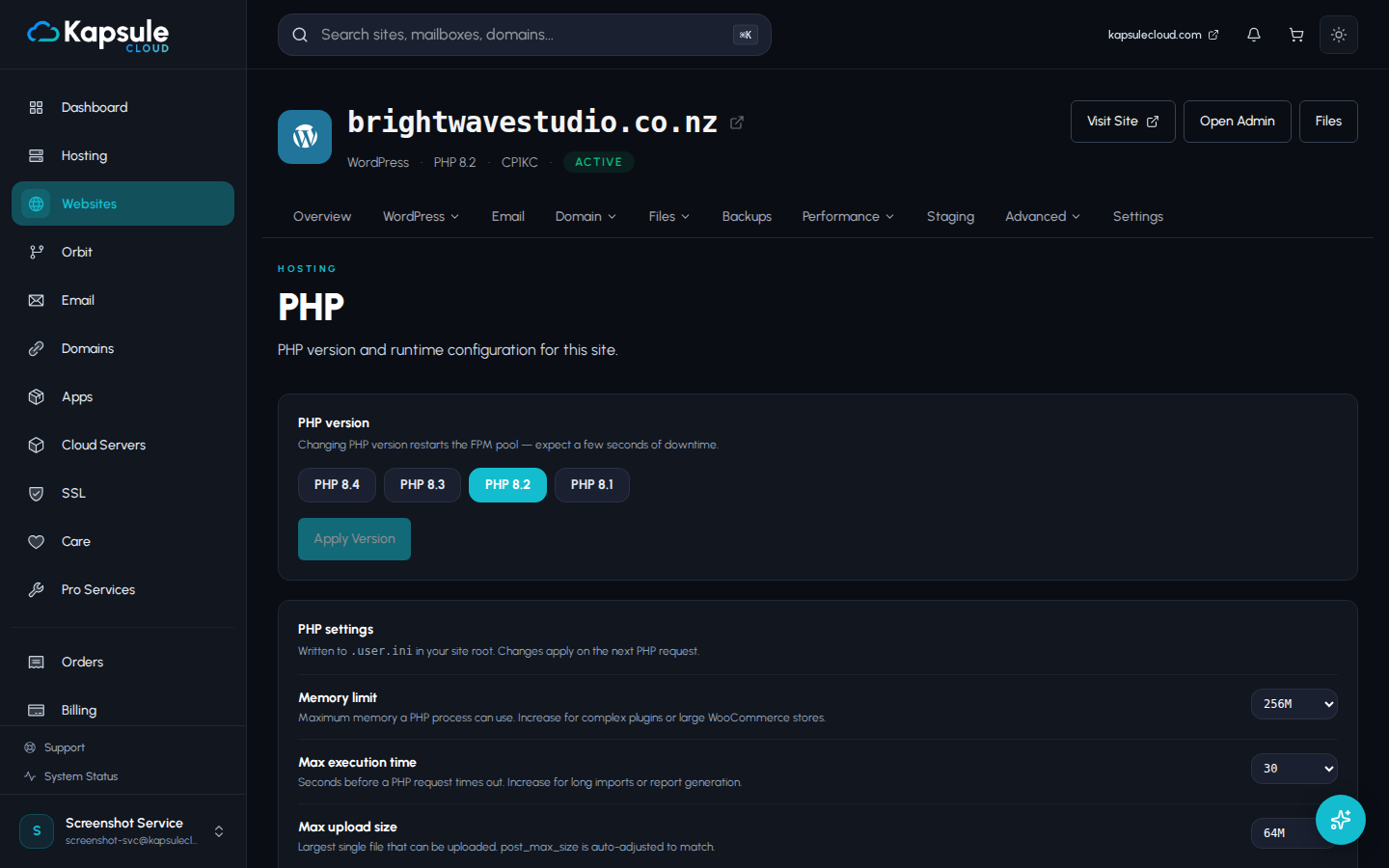
Changing PHP Version in KPanel
- Log in to KPanel at kpanel.kapsulecloud.com.
- Click Websites in the left sidebar.
- Click the site you want to update.
- Click the PHP page (sometimes labelled PHP Version or Settings).
- From the PHP Version dropdown, select the version you want.
- Click Apply Version.
The change takes effect within a few seconds. No restart is required. Your site will immediately begin running on the selected PHP version.
Testing After a PHP Version Change
After changing the PHP version:
- Visit your site's homepage in a private/incognito browser window to avoid cached results.
- Log in to your WordPress admin (typically at
/wp-admin) to confirm the backend loads. - Check key pages and functionality: your contact form, checkout page, search, image galleries, or anything interactive.
What to Do If a Plugin Breaks
If your site shows errors or goes blank after changing PHP:
Option 1: Revert the PHP version.
Go back to KPanel > Websites > [site] > PHP and select the previous PHP version. Your site will return to its previous state immediately.
Then identify which plugin is causing the conflict. You can do this by:
- Checking the PHP error log in KPanel for the filename of the failing code.
- Going to your WordPress admin > Plugins and checking if an update is available for the problematic plugin.
- Visiting the plugin's wordpress.org page to confirm PHP 8.x compatibility.
Option 2: Restore from your backup.
If the PHP version revert does not fully resolve the issue (for example, if the error corrupted a setting), restore the manual backup you created before the change. See Restoring Your Site from a Backup.
Using Kora to Change PHP Version
You can ask Kora to handle this for you:
"Change my site to PHP 8.2." "What PHP version is my site running?" "Upgrade my PHP version and let me know if anything looks wrong."
Kora will remind you to create a backup first, make the change, and report back on the result.
PHP Version and WordPress Core
WordPress itself requires a minimum PHP version to run. As of 2026, WordPress recommends PHP 8.1 or higher for full support and optimal performance. Running a PHP version below WordPress's minimum will produce warnings or errors in the WordPress admin. Kapsule Cloud will notify you if your PHP version is approaching end-of-life.