
Creating Your First Website
KPanel makes creating a website a short, guided process. This article walks you through every step: choosing a site type, assigning a domain, selecting your PHP version, and knowing what to expect once the site is created.
Before You Start
Make sure you have:
- A domain connected to your Kapsule account (see Adding and Connecting Your Domain)
- DNS propagated and pointing to Kapsule (required for SSL to issue)
If your domain was just registered through Kapsule, you are ready to go immediately.
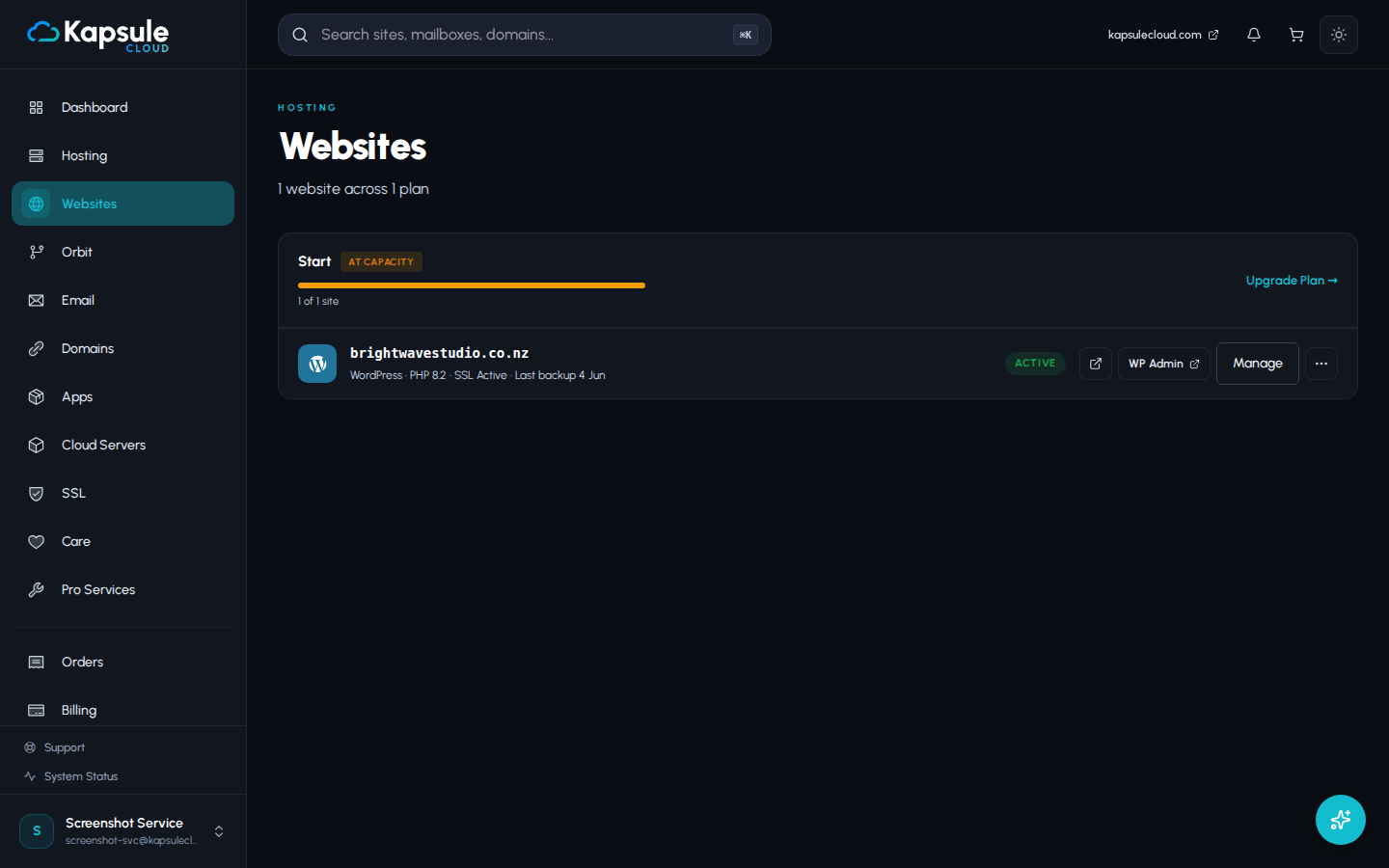
Step 1: Open the Add Website Wizard
- Sign in to kpanel.kapsulecloud.com
- Click Websites in the left sidebar
- Click Add Website
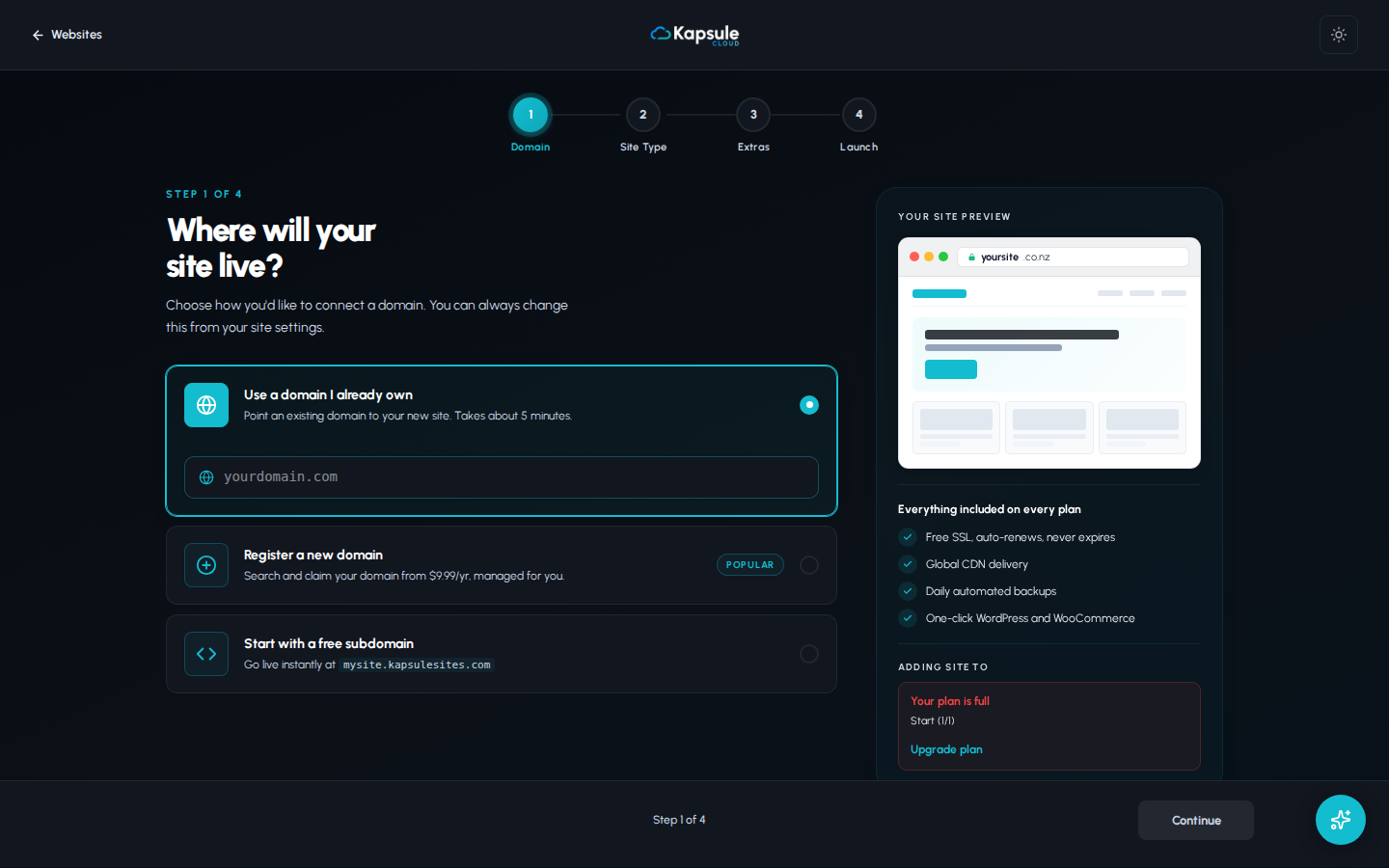
Step 2: Choose Your Site Type
KPanel supports several site types. Choose the one that matches what you are building:
| Site Type | Best For |
|---|---|
| WordPress | Blogs, business sites, portfolios, WooCommerce stores |
| Static HTML | HTML/CSS/JS sites with no server-side processing |
| Node.js | Custom JavaScript applications |
If you are not sure which to pick, choose WordPress. It is the most flexible option and can be used for almost any kind of website. KPanel will handle the full installation automatically.
Step 3: Configure Your Site
After selecting a site type, fill in the site details:
Domain: Select the domain or subdomain this site should be served from. If your domain is connected and DNS has propagated, it will appear in the dropdown.
PHP Version: For WordPress and most PHP-based sites, the latest PHP version shown is recommended. If you are migrating an existing site that requires a specific version, select that version here. You can change this later from the site settings.
Site User: KPanel creates an isolated system user for each site. This keeps your sites separated for security. The username is generated automatically.
If you do not see your domain in the dropdown, it means DNS has not yet propagated or the domain has not been added to your account. Go to Domains and confirm the domain is listed and shows an Active status.
Step 4: WordPress-Specific Settings
If you selected WordPress, an additional screen will appear asking for:
- Site Title: The name of your WordPress site (can be changed later in WordPress settings)
- Admin Username: The login name for the WordPress admin panel
- Admin Password: A strong password for the WordPress admin panel
- Admin Email: The email address linked to the WordPress admin account
Save your WordPress admin username and password immediately. Write them in a password manager or secure note. The password is shown only once during this setup wizard.
Step 5: Create the Site
Review your settings and click Create Site.
KPanel will:
- Create the site directory and system user
- Configure the web server for your domain
- Install WordPress (if selected) including the database and all core files
- Request an SSL certificate for your domain
You will see a progress indicator while the site is being set up. This usually takes 30 to 90 seconds.
What Happens After Creation
Once creation completes, your site appears in the Websites list. You will see several status indicators:
SSL Status: Shows whether your SSL certificate has been issued. A green padlock means SSL is active and your site is accessible over HTTPS.
Site Status: Shows whether the web server is running and serving the site.
Quick Links: Direct links to visit your site, open the file manager, and access databases.
If SSL Does Not Appear Within 10 Minutes
SSL is issued automatically once your domain's DNS is pointing to Kapsule. If the SSL status still shows as pending or failed after 10 minutes, work through this checklist:
-
Confirm DNS has propagated. Use a DNS propagation checker and search for your domain's A record. It should resolve to a Kapsule IP address.
-
Check the domain is connected in KPanel. Go to Domains and confirm the domain shows as Active.
-
Check for a CAA record conflict. If your domain previously had a CAA DNS record specifying which certificate authorities can issue SSL for it, that record may be blocking issuance. Go to Domains > [your domain] > DNS Records and look for any CAA records. If you find one that does not include Kapsule's certificate authority, remove it or ask support for help.
-
Wait a little longer. In some cases, SSL can take up to 20 to 30 minutes if your DNS TTL was set high before propagation.
If SSL is still not issuing after 30 minutes and DNS shows as propagated, contact support at support@kapsulecloud.com with your domain name. The team can diagnose the issue quickly.
Visiting Your Site
Once the site is created and SSL is issued:
- Your site is live at
https://yourdomain.com - WordPress sites: admin panel is at
https://yourdomain.com/wp-admin - Static/empty sites: upload your files via the File Manager or SFTP
For WordPress, see Installing WordPress for the recommended first steps after setup.