
DNS Basics: A Records, MX, CNAME, and TXT Explained
DNS is one of those things that works invisibly when everything is correct, and becomes critical to understand when something is wrong. This article explains what DNS is, what each record type does, and how to manage DNS records in KPanel.
What Is DNS?
Think of DNS (Domain Name System) as the phone book of the internet. When you type yourdomain.com into a browser, your computer does not automatically know what server to connect to. DNS translates the human-readable domain name into a numerical IP address that computers use to find the right server.
Without DNS, you would need to type something like 192.168.1.200 to visit every website. DNS makes the internet usable by letting us use memorable names instead.
Every domain has a set of DNS records that act as its directory listing: where to send web traffic, where to deliver email, what services are authorised to send email on its behalf, and more.
Where DNS Records Are Managed
DNS records for your domain are managed wherever your nameservers are pointed. If your domain is using Kapsule's nameservers (ns1.kapsulecloud.com, ns2.kapsulecloud.com, ns3.kapsuledns.com, ns4.kapsuledns.com), then all your DNS records are managed from KPanel > Domains > your domain > DNS Records.
If you are using a different provider's nameservers, you manage DNS records at that provider, not in KPanel.
The Most Important DNS Record Types
A Record
An A record maps your domain name to an IPv4 address. This is how browsers know which server to connect to when someone visits your website.
Example:
yourdomain.com.    A    203.0.113.10
www.yourdomain.com.    A    203.0.113.10
Both the root domain and the www subdomain usually have A records pointing to the same server IP.
When you use it: Every domain that hosts a website needs at least one A record. Kapsule creates these automatically when you add a domain.
AAAA Record
An AAAA record is the IPv6 equivalent of an A record. IPv6 addresses are longer (for example, 2001:db8::1) and are becoming more common as the internet transitions away from IPv4. The function is identical: point the domain name to a server address.
When you use it: Most websites do not need to manually configure AAAA records. They are handled automatically when your hosting server supports IPv6.
CNAME Record
A CNAME (Canonical Name) record creates an alias, pointing one domain name to another domain name rather than to an IP address. The browser follows the CNAME to find the eventual A record.
Example:
shop.yourdomain.com. CNAME yourdomain.com.
This means shop.yourdomain.com resolves to the same place as yourdomain.com.
When you use it: CNAMEs are commonly used for subdomains, for verifying ownership of a domain with third-party services (for example, Google Search Console), and for pointing a subdomain to an external service like a hosted help centre or booking platform.
You cannot use a CNAME on the root domain (yourdomain.com) alongside an MX or other records. Use an A record at the root domain and CNAME records on subdomains only.
MX Record
An MX (Mail Exchanger) record tells email servers where to deliver email sent to addresses at your domain. Without a correct MX record, email to you@yourdomain.com will fail to deliver.
Example:
yourdomain.com. MX 10 mail.kapsulecloud.com.
The number (10 in the example) is the priority. If there are multiple MX records, lower numbers are tried first. This allows for backup mail servers.
When you use it: Every domain that uses email must have at least one MX record. When your domain uses Kapsule's nameservers, MX records are set automatically when you create a mailbox.
TXT Record
TXT records hold arbitrary text data associated with a domain. They are used for a wide variety of purposes:
SPF (Sender Policy Framework): Specifies which servers are authorised to send email on behalf of your domain. Prevents email spoofing.
DKIM (DomainKeys Identified Mail): A cryptographic key used to verify that email from your domain was genuinely sent by your mail server and not forged.
DMARC: A policy that tells receiving mail servers what to do with email that fails SPF or DKIM checks.
Domain verification: Services like Google Search Console, Microsoft 365, and others ask you to add a TXT record to prove you own the domain.
Example:
yourdomain.com. TXT "v=spf1 include:mail.kapsulecloud.com ~all"
When your domain uses Kapsule's nameservers, SPF, DKIM, and DMARC records are set automatically for your Kapsule mailboxes.
NS Record
NS (Name Server) records specify which DNS servers are authoritative for your domain. They tell the internet where to go to find all the other DNS records for your domain.
Example:
yourdomain.com.    NS    ns1.kapsulecloud.com.
yourdomain.com.    NS    ns2.kapsulecloud.com.
yourdomain.com.    NS    ns3.kapsuledns.com.
yourdomain.com.    NS    ns4.kapsuledns.com.
When you use it: NS records are set at your registrar, not in your DNS management panel. Changing NS records switches DNS control from one provider to another. See Changing Nameservers to Point Your Domain to Kapsule.
You should not modify NS records directly in KPanel. NS changes are made at your domain registrar. Editing NS records incorrectly can make your entire domain unreachable.
TTL: Why DNS Changes Take Time
TTL (Time to Live) is a value attached to each DNS record that tells other DNS servers how long to cache (store) that record before checking for updates. It is measured in seconds.
Example: A TTL of 3600 means the record is cached for one hour. During that hour, even if you change the record, computers that already cached the old value will keep using it until their cache expires.
Common TTL values:
| TTL Value | Duration |
|---|---|
| 300 | 5 minutes |
| 900 | 15 minutes |
| 3600 | 1 hour |
| 14400 | 4 hours |
| 86400 | 24 hours |
Why this matters: When you change a DNS record, the change does not appear instantly for everyone. People and systems around the world that have the old record cached will continue using the old value until their TTL expires. This is why "DNS propagation" takes time, sometimes up to 48 hours for very high TTL values.
If you know you are about to make DNS changes (for example, moving a site to a new server), lower your TTL to 300 seconds a day in advance. This means old cached values expire quickly after you make the change, reducing propagation time significantly. After the change is stable, set TTL back to a higher value.
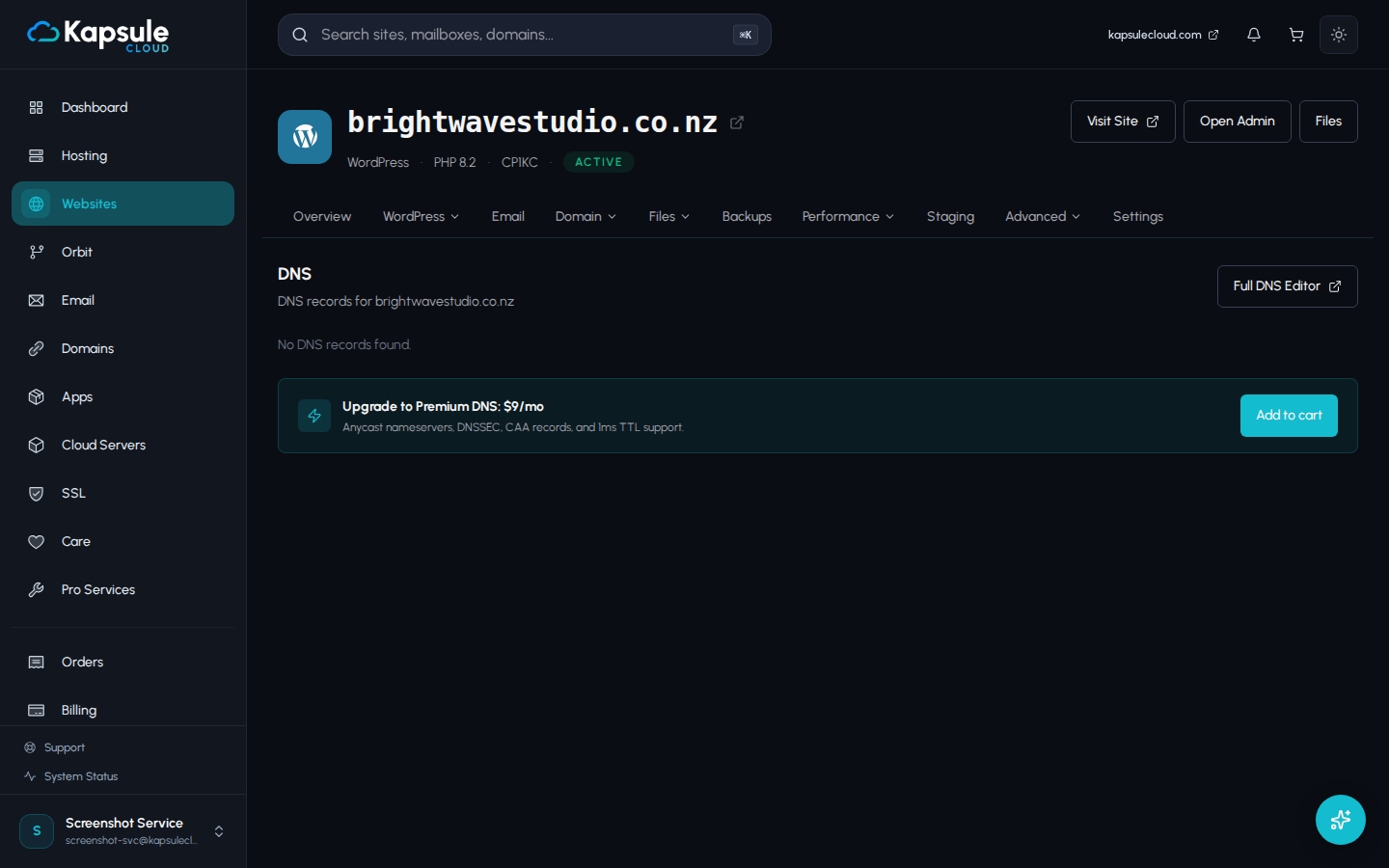
How to View and Edit DNS Records in KPanel
- Sign in to kpanel.kapsulecloud.com
- Click Domains in the sidebar
- Click on your domain name
- Click DNS Records (or Manage DNS)
From here you can:
- View all existing records
- Add a new record by clicking Add Record and selecting the record type
- Edit an existing record by clicking the edit icon
- Delete a record by clicking the delete icon
Deleting the wrong DNS record can take your website or email offline. If you are not sure what a record is for, do not delete it. Contact support@kapsulecloud.com before removing records you are uncertain about.
Checking DNS Records
KPanel includes a DNS checker tool you can use to verify that your records have propagated correctly:
- Go to Domains > your domain > DNS Records
- Look for a Check DNS or DNS Checker option
- Enter the record type and domain you want to verify
You can also use publicly available DNS lookup tools to verify records from outside Kapsule's network, which helps confirm that changes have propagated globally.
Quick Reference
| Record Type | Points To | Used For |
|---|---|---|
| A | IP address | Website hosting |
| AAAA | IPv6 address | IPv6 hosting |
| CNAME | Another domain name | Subdomains, aliases |
| MX | Mail server hostname | Email delivery |
| TXT | Text string | SPF, DKIM, DMARC, domain verification |
| NS | DNS server hostname | Nameserver delegation |