
Getting Started with Kapsule Cloud
Welcome to Kapsule Cloud. This guide walks you through everything you need to do after signing up, from your first login to having a live website and working email address. The whole process takes around 15 minutes.
What You Will Need
- Your verified Kapsule Cloud account (check your inbox for the verification email)
- A domain name (either registered through Kapsule or one you own elsewhere)
- A few minutes to work through the steps below
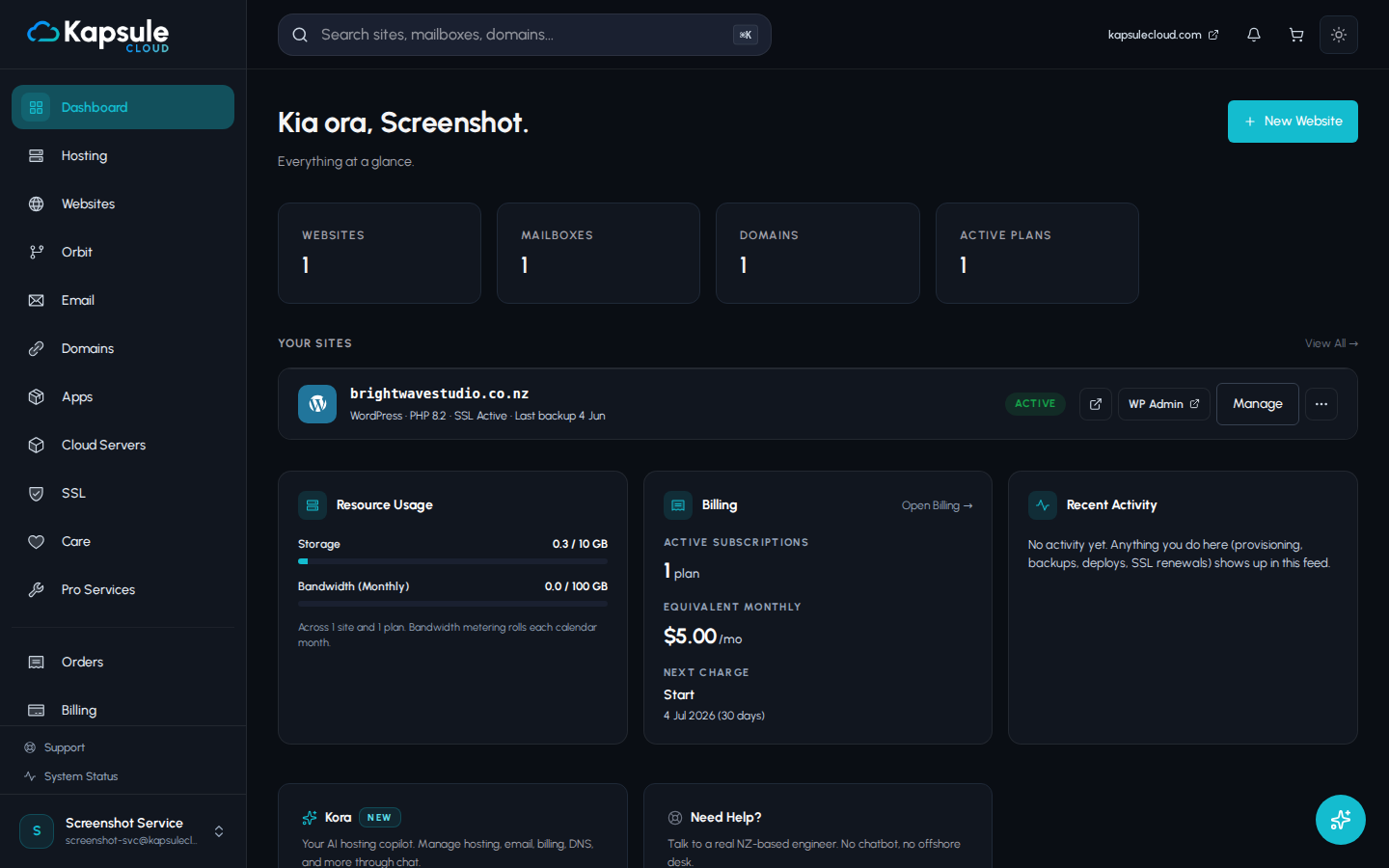
Step 1: Sign In and Find Your Way Around KPanel
KPanel is your hosting control panel. Everything, including sites, domains, email, databases, and files, is managed from here.
Open your browser and go to kpanel.kapsulecloud.com. Sign in with the email address and password you used to register.
The left sidebar contains the main sections:
| Section | What It Does |
|---|---|
| Websites | Create and manage your websites |
| Domains | Register and manage domain names |
| Create mailboxes and manage email settings | |
| Billing | Manage your plan and invoices |
The dashboard home shows a summary of your active sites, domains, and storage usage at a glance.
Bookmark kpanel.kapsulecloud.com now. You will return here often.
Step 2: Add Your Domain
Before you can create a website or set up email, you need a domain connected to your account.
If you already own a domain elsewhere: Go to Domains in the sidebar, click Add Domain, enter your domain name, and follow the prompts. You will then need to update the nameservers at your registrar to point to Kapsule. See the Adding and Connecting Your Domain guide for full instructions.
If you want to register a new domain: Go to Domains, click Register a Domain, search for your preferred name, and complete the registration. New domains registered through Kapsule are automatically connected to your hosting account.
Nameserver changes for existing domains can take up to 24 to 48 hours to fully propagate. Your site and email will not work until DNS has pointed to Kapsule's servers.
Step 3: Create Your First Website
Once your domain is connected:
- Go to Websites in the left sidebar
- Click Add Website
- Choose your site type (WordPress is the most common choice)
- Select your domain from the dropdown
- Choose your PHP version (the latest available is recommended)
- Click Create Site
Kapsule will automatically request an SSL certificate for your domain once the DNS is pointing here. You will see a green padlock icon in the Websites list when SSL is active, usually within a few minutes of DNS propagating.
If you chose WordPress, a second screen will appear asking you to set your WordPress admin username, password, and site title. Save these credentials somewhere secure immediately.
Write down your WordPress admin password before clicking Create. It is shown only once during setup.
Step 4: Set Up Your Email
To create an email address at your domain (for example, hello@yourdomain.com):
- Go to Email in the sidebar
- Click Add a Mailbox
- Enter the mailbox name (the part before the @), choose your domain, and set a strong password
- Click Create
Your mailbox is ready immediately. You can access it right away at webmail.kapsulecloud.com.
To configure email in Outlook, Apple Mail, or your phone, see the Email Client Setup guide.
Email only works if your domain is using Kapsule's nameservers. MX records are set automatically when nameservers point to Kapsule.
Quick-Start Checklist
Use this checklist to confirm you have completed the essentials:
- Signed in to KPanel at kpanel.kapsulecloud.com
- Added or registered your domain
- Nameservers updated (if domain is registered elsewhere)
- Created your first site
- SSL certificate issued (green padlock visible in Websites)
- WordPress installed and admin credentials saved (if using WordPress)
- Created at least one email mailbox
- Tested webmail at webmail.kapsulecloud.com
- Configured email on your phone or desktop client
Next Steps
Now that you are up and running, here are the guides you are most likely to need next:
- Adding and Connecting Your Domain
- Installing WordPress
- Setting Up Your Email Mailbox
- Configuring Your Email in Outlook, Apple Mail, and Mobile
If you run into anything, our support team is at support@kapsulecloud.com.