
Restoring Your Site from a Backup
If your site is broken after an update, has been compromised, or content has been accidentally deleted, restoring from a backup is often the fastest way to get back to a working state. This guide walks through the full restore process.
When to Restore from a Backup
Restoring is the right move when:
- A plugin or theme update broke the site and you cannot access the admin dashboard.
- Your site was hacked or defaced and you need to return to a clean state.
- You accidentally deleted posts, pages, or uploaded files and need them back.
- A PHP version change caused fatal errors and reverting PHP alone did not fix it.
- A configuration change made the site inaccessible and you cannot identify the cause.
If you are unsure whether a restore will fix the problem, consider restoring to a staging environment first. Contact support if you need a staging restore set up before touching your live site.
What a Restore Does
A restore completely overwrites your current site with the contents of the selected backup:
- All site files are replaced with the files from the backup.
- The database is replaced with the database snapshot from the backup.
- Any changes made after the backup was taken, including new posts, new uploads, settings changes, and plugin updates, will be lost.
A restore cannot be undone. Once you confirm the restore, the current state of your site is gone. If there is anything in the current version of your site that you want to keep (for example, orders placed since the backup, or a post you wrote today), save or export it before restoring.
How Long a Restore Takes
Most restores complete in 2 to 5 minutes. Larger sites with many files or a large database may take up to 10 minutes. Your site will be briefly unavailable during the restore process.
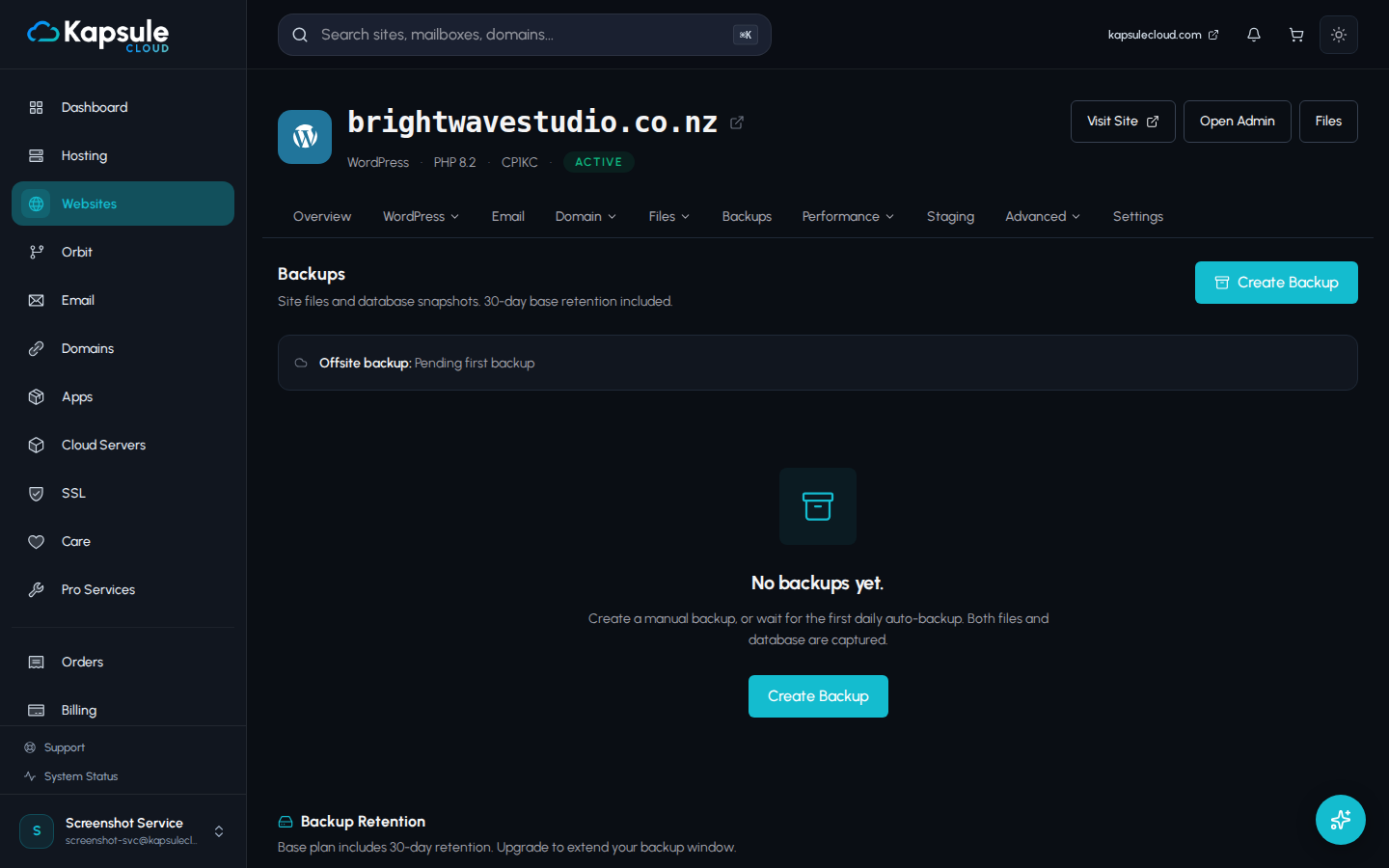
Finding Your Backup in KPanel
- Log in to KPanel at kpanel.kapsulecloud.com.
- In the left sidebar, click Backups.
- If you manage multiple sites, select the correct site from the site selector.
- You will see a list of available backups, sorted by date with the most recent at the top. Each backup shows its label (if you added one), the date and time it was created, and the backup size.
Automatic backups are labelled with their date. Manual backups show the label you gave them when they were created.
Restoring a Backup
- Locate the backup you want to restore in the list.
- Click the Restore button next to that backup.
- A confirmation dialog appears. Choose your restore target and what to restore:
- By default the restore target is set to Staging (recommended), this creates a copy of your site so you can verify before anything touches production.
- Use the What to restore selector: Files + database (default), Files only, or Database only.
- To restore directly to your live site, switch the target to Live and type your domain name to confirm.
- Click Restore to staging (or Restore directly to live if you switched).
The restore begins immediately. A progress bar will appear. If you restored to staging, a link to preview the staging URL will appear when complete.
Restoring via Kora
You can ask Kora to restore a backup for you:
"Restore my site to yesterday's backup." "Roll back to the backup I took before the PHP update."
Kora will identify the correct backup, show you which one it plans to restore, and ask for your confirmation before proceeding. Destructive actions always require your explicit approval.
What to Do After a Restore
Once the restore is complete, check the following:
- Visit your site in a new browser tab (use a private/incognito window to avoid cached versions). Confirm it loads correctly and the pages you expected are there.
- Log in to your WordPress or application admin to confirm the backend is accessible.
- Check for missing content. Any posts, orders, or uploads created after the backup timestamp will need to be manually re-added if they are important.
- Re-apply intentional changes. If the backup pre-dates configuration changes you made deliberately (for example, a new API key entered into a plugin), re-enter those settings.
- Run a plugin update or security scan if the restore was triggered by a hack. Restoring removes the injected files, but the vulnerability that allowed the compromise should still be addressed.
If you restored to fix a hacked site, contact support at support@kapsulecloud.com after the restore. The support team can advise on hardening your site and scanning for remaining vulnerabilities.
Backups Are Kept After a Restore
Restoring a backup does not delete your other backups. Your full backup history remains intact, and daily automatic backups will continue as normal from the moment the restore completes.