
Taking a Manual Backup
Kapsule Cloud automatically backs up every site daily, retaining those backups for 30 days. + + :::note + Extended retention plans are available as add-ons: 90-day, 365-day, and 7-year (compliance). These can be added from Billing → Add-ons or by contacting support. + ::: Manual backups let you create an on-demand snapshot at any moment, which is especially useful before making changes that could break your site. + +
What Backups Include +
+
Every backup, whether automatic or manual, captures two things: + +
- Site files: All files in your site's directory, including WordPress core, themes, plugins, uploads, and any custom code. +
- Database: A complete snapshot of your MySQL database, including posts, pages, settings, users, and plugin data. + + Both are stored together as a single restore point, so you can roll back your entire site to exactly the state it was in when the backup was taken. + + :::warning + Backups do not include external services connected to your site. If you use a third-party email provider, a payment gateway, or any service hosted outside Kapsule Cloud, those are not captured. Export data from those services separately if needed. + ::: + +
Automatic Daily Backups +
+
Your site is backed up automatically every day. You do not need to do anything to enable this. All automatic backups are retained for 30 days, after which they are permanently removed. + + You can view your automatic backups in KPanel > Backups at any time. + +
When to Create a Manual Backup +
+
:::tip +
Always create a manual backup before making any of the following changes: updating WordPress, upgrading or installing plugins or themes, changing your PHP version, editing theme files or custom code, or making structural changes to your database. A manual backup gives you a clearly labelled restore point you can return to instantly.+
::: +
+
Manual backups are a safety net you create on demand. Use them whenever the automatic backup schedule does not give you enough coverage. +
+
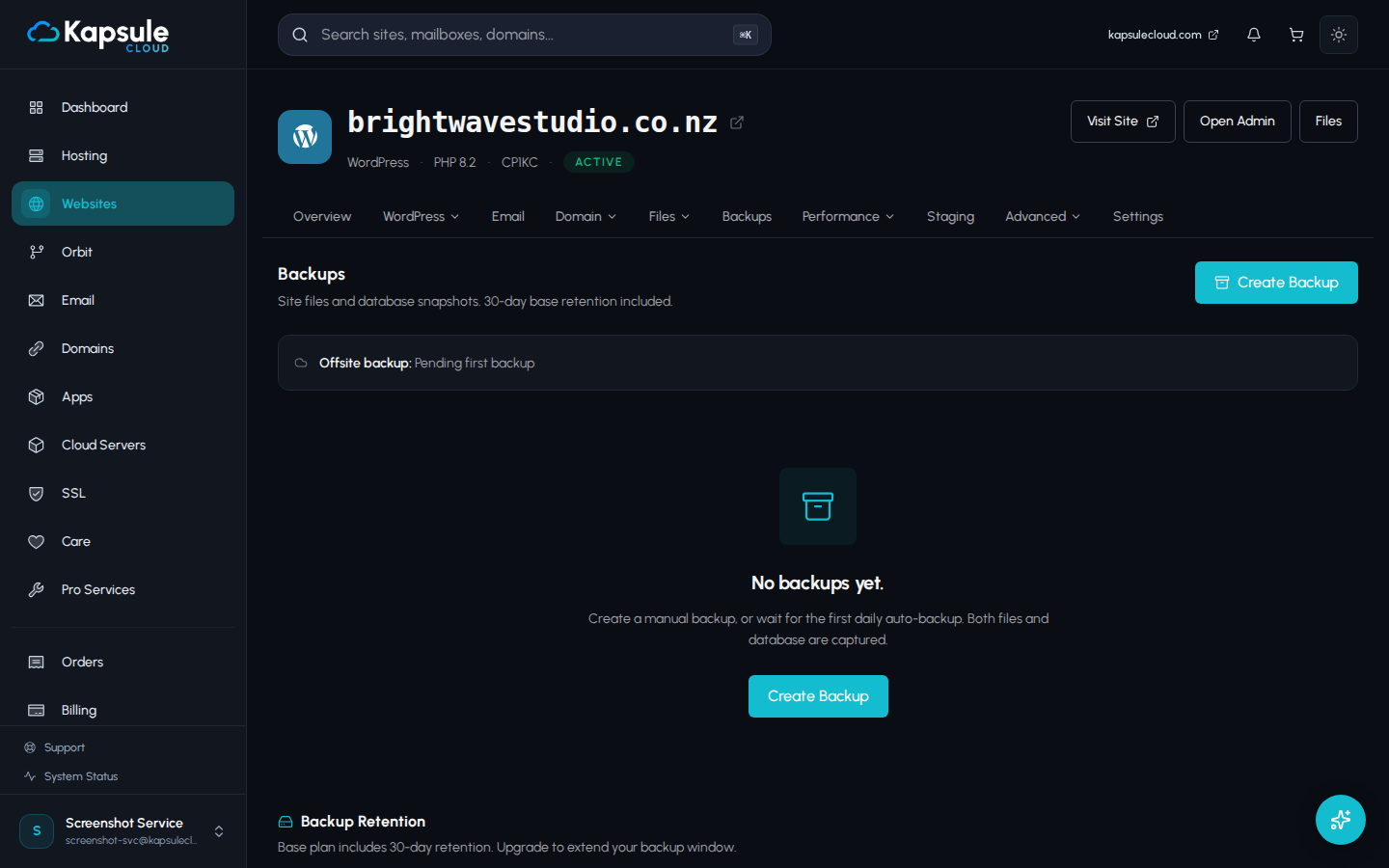 +
+
+
+
Creating a Backup in KPanel +
+
- Log in to KPanel at kpanel.kapsulecloud.com. +
- In the left sidebar, click Backups. +
- If you manage more than one site, select the site you want to back up from the site selector at the top. +
- Click Create Backup. +
- In the dialog that appears, enter a label for your backup (for example: "Before PHP 8.3 upgrade" or "Pre-WooCommerce install"). Labels make it easy to identify this backup later. +
- Click Confirm to start the backup. + + The backup will begin immediately. A progress indicator will appear in the Backups list. Most backups complete within 1 to 3 minutes, depending on site size. + + Once complete, the backup will appear in your backup list with the label you entered, the timestamp, and the backup size. + +
Creating a Backup via Kora +
+
If you prefer, you can ask Kora to create a backup for you: + +
"Create a backup of my site before I update my plugins." + + Kora will trigger the backup and confirm once it is complete. You can find it in KPanel > Backups afterward. + +
Verifying a Backup Was Created +
+
After triggering a manual backup, confirm it appears correctly: + +
- Go to KPanel > Backups. +
- Look for your backup at the top of the list (most recent first). +
- Confirm the label, timestamp, and file size are present. +
- If the status shows a spinner, the backup is still in progress. Refresh after a minute. + + If a backup does not appear after 5 minutes, or shows a failed status, contact support at support@kapsulecloud.com. + +
Backup Storage and Retention +
+
| Backup Type | Retention Period | + |---|---| + | Automatic daily | 30 days | + | Manual | 30 days | + + After 30 days, backups are permanently deleted and cannot be recovered. If you need backups kept longer, ask about the Backup Storage add-on (90-day, 1-year, and 7-year options are available). + + :::note + Backup storage counts against your plan's storage quota. Very large sites may produce backups of several gigabytes. If you are approaching your storage limit, consider downloading and removing older manual backups. + :::