
WordPress Admin Access and Credentials
This article covers everything related to getting into your WordPress admin panel: finding the login URL, recovering a forgotten password, getting back in after a lockout, managing admin users, and understanding how WordPress accounts differ from KPanel accounts.
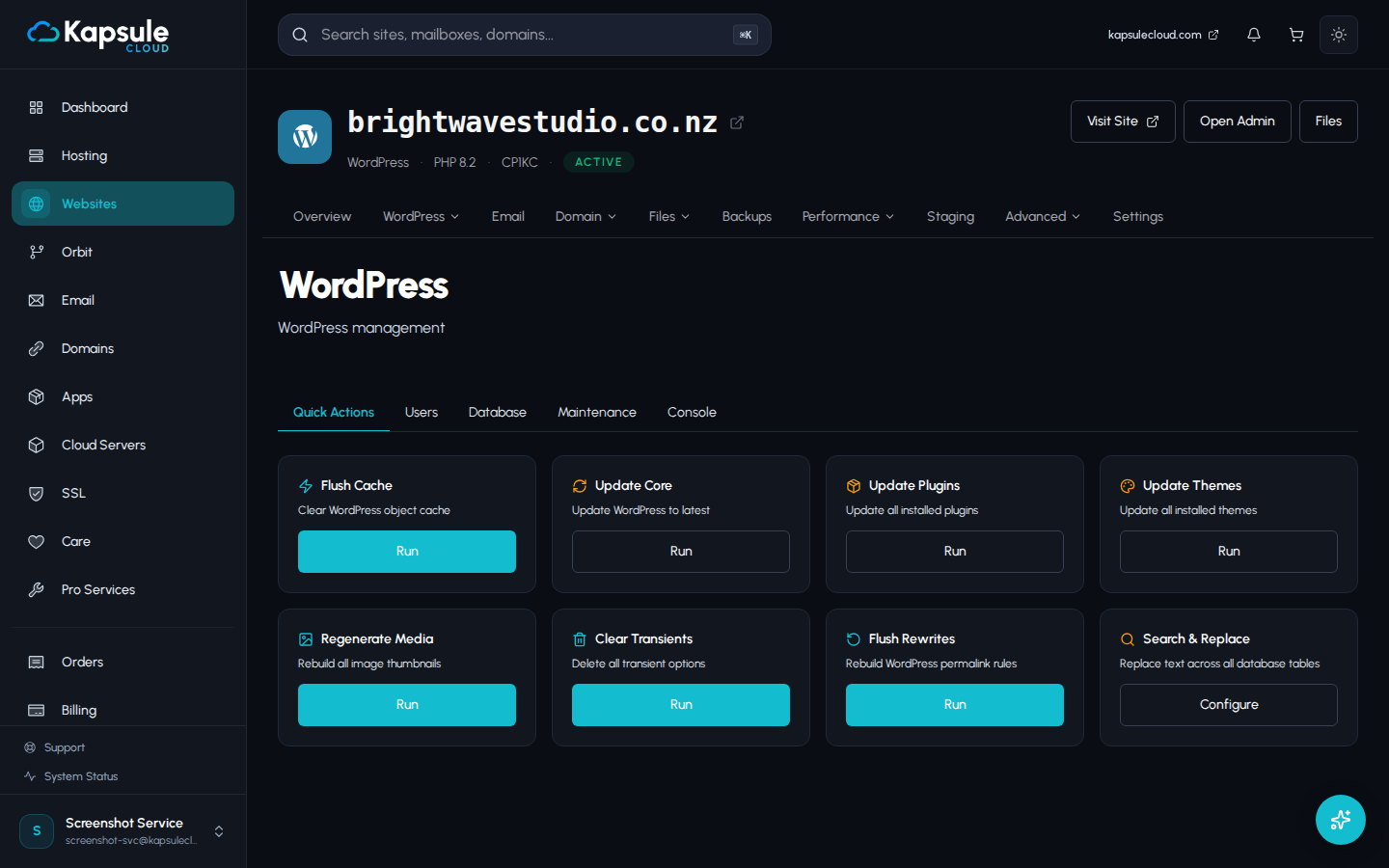
Finding Your WordPress Admin URL
The WordPress admin panel is always located at:
https://yourdomain.com/wp-admin
Replace yourdomain.com with your actual domain. If your site is on a subdomain, it would be:
https://subdomain.yourdomain.com/wp-admin
Bookmark this URL. You will use it every time you need to manage your site.
Forgotten Password: Resetting via KPanel
If you have forgotten your WordPress admin password, the quickest way to reset it is through KPanel, without needing access to /wp-admin at all.
Option 1: Reset via Kora (Fastest)
- Sign in to kpanel.kapsulecloud.com
- Open Websites and click on your WordPress site
- Open the Kora assistant within the site
- Type: Reset my WordPress admin password
- Kora will ask you to confirm the site and the admin username, then generate a new secure password
- Copy the new password and use it to log in at /wp-admin
Kora can reset the WordPress admin password in under 30 seconds. It is the recommended method for any WordPress credential issue on your site.
Option 2: Use the Built-In "Lost Your Password?" Link
On the /wp-admin login screen, click Lost your password? below the login form. Enter the admin email address used during installation. WordPress will send a password reset link to that email address.
This option only works if you have access to the email address linked to the WordPress admin account. If that email address is no longer accessible, use the KPanel or Kora method instead.
Option 3: Reset via KPanel Site Tools
- Go to Websites → your WordPress site
- Look for WordPress Tools or Manage WordPress in the site options
- Find the Reset Admin Password option and follow the prompts
Do not edit the WordPress database directly to reset a password unless you are comfortable with database administration and understand the hashing format WordPress uses for passwords. Incorrect manual edits can corrupt your WordPress installation. Use Kora or KPanel instead.
Locked Out: Too Many Failed Login Attempts
If you or someone else has entered the wrong password too many times, WordPress may temporarily block login attempts from that IP address (if a security plugin is active). Here is how to recover:
If a Security Plugin Is Blocking Your IP
- Sign in to KPanel
- Open Kora and type: I am locked out of WordPress on [domain]. Unblock my IP or disable the login lockout.
- Kora will identify the security plugin, clear the lockout, and restore access
Alternatively:
- Go to Websites → your site → File Manager
- Navigate to
wp-content/plugins - Find the folder for your security plugin (for example,
wordfenceorloginizer) - Rename the folder (for example, add
-disabledto the end) - This deactivates the plugin and removes the lockout
- Return to /wp-admin and log in, then rename the folder back and reconfigure the plugin
After regaining access, add your office or home IP address to the security plugin's allowlist so this cannot happen again accidentally.
If You Cannot Remember the Username
On the login screen, click Lost your password? and enter the admin email address. If you do not remember which email was used, open Websites → your site and check the site details. The admin email is usually recorded there.
Creating Additional Admin Users
It is good practice to create a personal admin user with your own email address rather than sharing a single admin account. To add an admin user:
- Log in to /wp-admin
- Go to Users > Add New
- Fill in the username, email, and a strong password
- Set the Role to Administrator
- Click Add New User
The new user will receive an email at the address you provided with a link to set their own password.
Keep the number of administrator-level users to a minimum. For content writers or editors, use the Editor or Author role instead. This limits the damage if an account is compromised.
WordPress Users vs. KPanel Users: What Is the Difference?
This is a common point of confusion. Here is a clear breakdown:
| WordPress Users | KPanel Users | |
|---|---|---|
| What they control | Your WordPress website content, themes, plugins | Your hosting account: sites, domains, email, billing |
| Where you log in | yourdomain.com/wp-admin | kpanel.kapsulecloud.com |
| Credentials | Set during WordPress installation | Set during Kapsule account signup |
| Are they linked? | No. Completely separate systems | No. Completely separate systems |
| Password reset | Via /wp-admin, Kora, or KPanel tools | Via the KPanel login page "Forgot password?" link |
You can have dozens of WordPress users across multiple sites, all managed entirely within WordPress. Your KPanel account is a single account that controls the hosting environment those WordPress sites run on.
Never share your KPanel credentials with someone who only needs access to a WordPress site. Create a WordPress user for them at the appropriate role level instead.
Common Admin Access Issues
The /wp-admin page returns a 404 error. This usually means WordPress is not installed, or the permalinks need to be flushed. Sign in to KPanel, go to Websites, and confirm WordPress is installed on the site. If it is, open Kora and ask it to flush the WordPress rewrite rules.
The page loads but the login form does not appear.
This can indicate a caching plugin is serving a broken page. Try loading /wp-admin/?nocache=1 or clear site caches via Kora.
Correct credentials are rejected. Double-check that you are entering the WordPress admin password, not your KPanel password. If you are certain the credentials are correct, use the Kora password reset method to set a fresh one.
The admin panel loads but shows a blank white screen.
A plugin or theme has likely caused a PHP error. Access your site via KPanel > File Manager, navigate to wp-content/plugins, and rename a plugin folder to test if it is the cause.