
Adding and Connecting Your Domain
Your domain is the address people use to find your website. This guide covers two scenarios: registering a brand new domain through Kapsule Cloud, and connecting a domain you already own at another registrar.
Registering a New Domain vs. Pointing an Existing One
There are two ways to get a domain working with your Kapsule hosting:
Register a new domain through Kapsule. This is the simplest path. The domain is registered directly to your Kapsule account, nameservers are configured automatically, and your site and email can go live within minutes.
Point an existing domain to Kapsule. If you already own a domain at GoDaddy, Namecheap, Google Domains, or anywhere else, you keep it there and update the nameservers to point DNS control to Kapsule. This is a straightforward change but requires a propagation window of up to 48 hours.
Keeping your domain at your current registrar is completely fine. You do not need to transfer it to Kapsule. Updating the nameservers is all that is required.
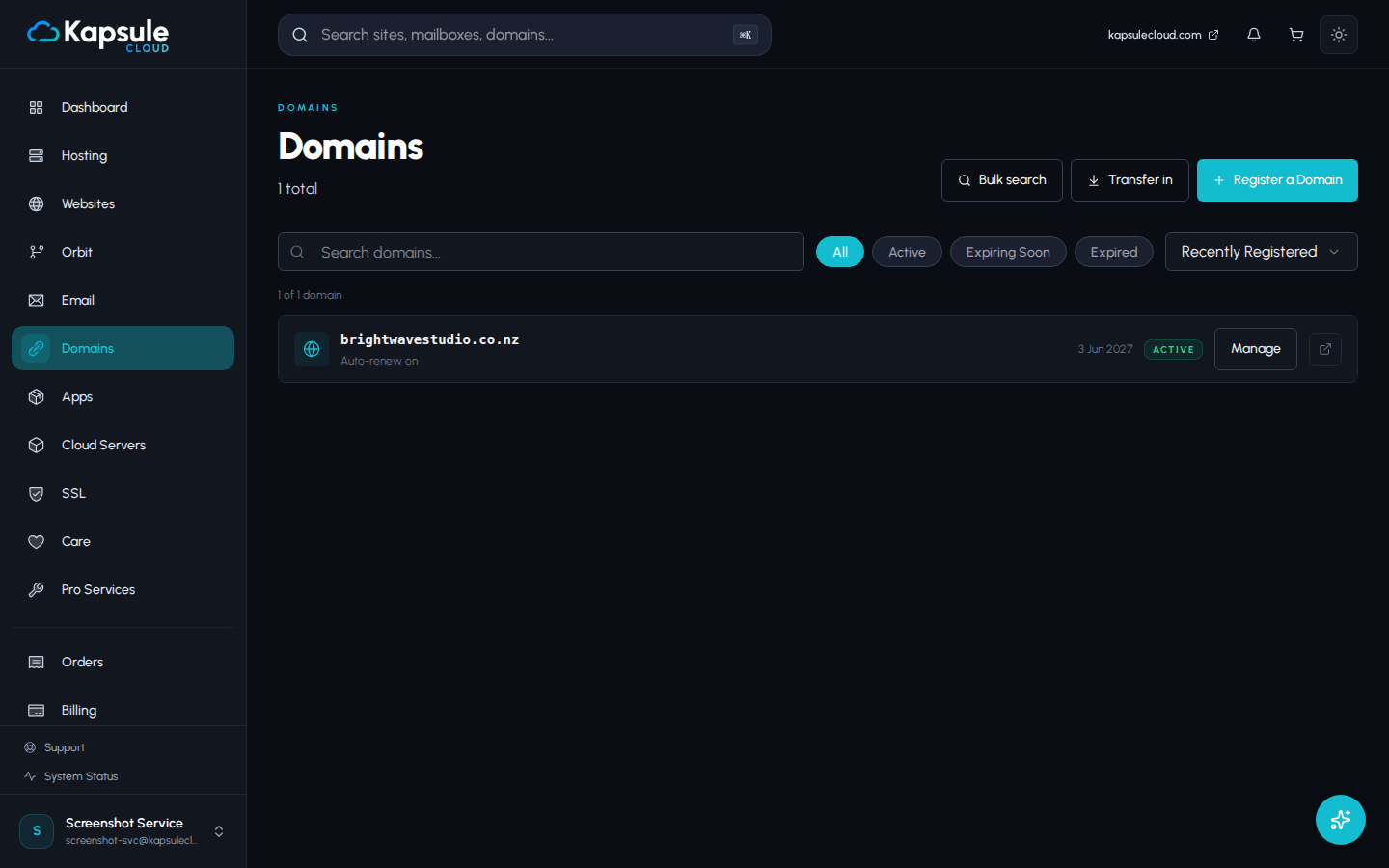
Option A: Register a New Domain Through Kapsule
- Sign in to KPanel at kpanel.kapsulecloud.com
- Click Domains in the left sidebar
- Click Register a Domain
- Type the domain name you want and click Search
- Select your preferred domain from the results and click Register
- Complete billing and confirm the registration
Once registered, your domain is automatically connected to your hosting account. You can create a site or mailbox immediately.
Option B: Point a Domain You Already Own
To use a domain you already own with Kapsule, update its nameservers at your registrar. No action is needed in KPanel first — once nameservers point to Kapsule, your domain will work with any site or mailbox you create.
Step 1: Update Nameservers at Your Registrar
Log in to the registrar where your domain is held and find the nameserver settings for the domain. This is usually under "DNS Settings", "Name Servers", or "Domain Management".
Replace any existing nameservers with Kapsule's four nameservers:
ns1.kapsulecloud.com
ns2.kapsulecloud.com
ns3.kapsuledns.com
ns4.kapsuledns.com
Save the changes. The exact steps vary by registrar, but all registrars provide a way to update nameservers in the domain settings panel.
If your domain currently has active email at another provider, changing nameservers will transfer DNS control to Kapsule and your existing email setup may stop working. Plan the change carefully and read the warning below before proceeding.
Do not change nameservers if you have live email running on an external mail server unless you have first documented all your current DNS records and are ready to recreate them in Kapsule's DNS. Email delivery can be interrupted during the transition. See the Changing Nameservers guide for a step-by-step transition plan.
For a full guide on nameserver changes, including registrar-specific instructions and a propagation timeline, see Changing Nameservers to Point Your Domain to Kapsule.
What to Expect After Updating Nameservers
Once you have updated nameservers at your registrar:
| Time After Change | What to Expect |
|---|---|
| 0 to 15 minutes | Change submitted, not yet propagated |
| 15 minutes to 4 hours | Propagating across most regions |
| 4 to 24 hours | Fully propagated for most users |
| Up to 48 hours | Fully propagated worldwide |
During propagation, some visitors may still see your old site or get a DNS error. This is normal and will resolve on its own as the change spreads globally.
You can check propagation status using a free DNS checker tool (search "DNS propagation checker"). Enter your domain and look for your Kapsule nameservers appearing in most locations.
Verifying the Domain Is Connected
Once propagation is complete, return to KPanel and check the domain status:
- Go to Domains in the sidebar
- Find your domain in the list
- The status should show Active or Connected
A connected domain means:
- Your DNS is managed by Kapsule
- SSL certificates can be issued for your sites
- Email at your domain will route through Kapsule's mail servers
- All DNS records can be managed from KPanel
If the domain still shows as pending after 48 hours, double-check your nameserver settings at your registrar. Copy the nameserver values exactly as listed in KPanel without trailing dots or extra spaces.
Common Questions
Can I add multiple domains to one account? Yes. You can add as many domains as your plan allows. Each domain appears in the Domains list and can have its own sites and mailboxes.
Do I need to transfer my domain to Kapsule? No. Pointing the nameservers is all that is required. You can keep your domain registered wherever it is.
Can I use a subdomain instead of a full domain? For site hosting, you need to add the root domain first. Subdomains (like shop.yourdomain.com) can then be created in the Websites section after the root domain is connected.
What if I only want to use Kapsule for email, not hosting? Add the domain, then manually configure MX records to point to Kapsule's mail servers. You do not need to create a site.