
Configuring Your Email in Outlook, Apple Mail, and Mobile
This guide gives you the server settings and step-by-step setup instructions for every major email client. Use the settings box at the top as your single reference, then follow the guide for your specific client.
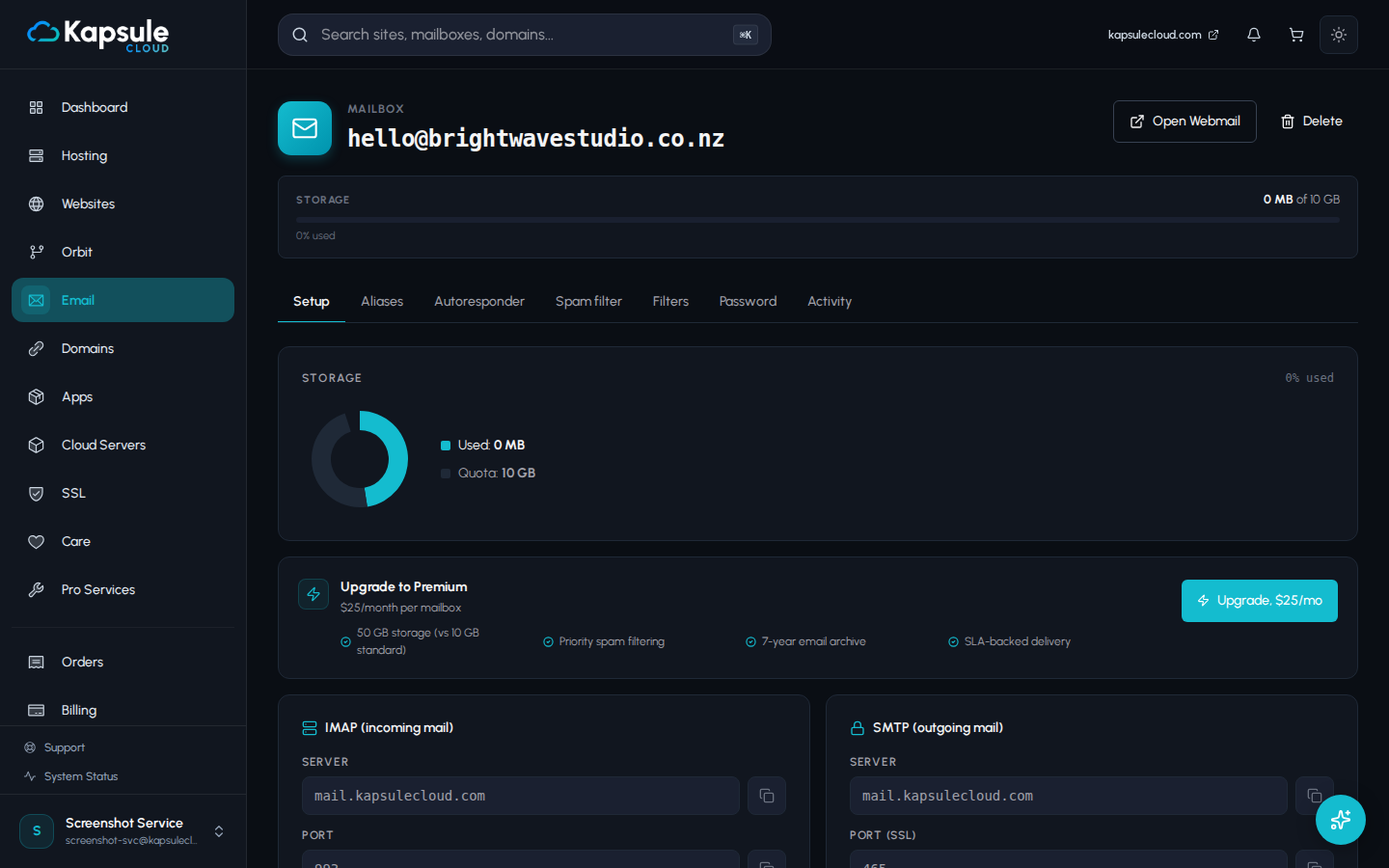
Your Kapsule Email Server Settings
Keep these settings handy. You will need them for any email client setup.
| Setting | Value |
|---|---|
| Incoming Mail Server (IMAP) | mail.kapsulecloud.com |
| IMAP Port | 993 |
| IMAP Encryption | SSL/TLS |
| Outgoing Mail Server (SMTP) | mail.kapsulecloud.com |
| SMTP Port | 465 |
| SMTP Encryption | SSL/TLS |
| Username | Your full email address (e.g. hello@yourdomain.com) |
| Password | The mailbox password set in KPanel |
IMAP is strongly recommended over POP3. IMAP keeps your emails synced across all your devices. POP3 downloads emails to one device and removes them from the server, which can lead to lost messages if you use multiple devices. POP3 is available on port 995 with SSL if you specifically need it.
If your mail client asks you to choose between IMAP (993) and POP3 (995), always choose IMAP to keep messages synced across devices.
Outlook for Windows
Step-by-Step Setup
- Open Outlook
- Click File > Add Account
- Enter your full email address and click Connect
- If Outlook detects settings automatically, confirm the IMAP option is selected. If prompted for manual setup, choose IMAP
- Enter the incoming server details:
- Server:
mail.kapsulecloud.com - Port:
993 - Encryption:
SSL/TLS
- Server:
- Enter the outgoing server details:
- Server:
mail.kapsulecloud.com - Port:
465 - Encryption:
SSL/TLS
- Server:
- Click Next, enter your password, and click Connect
- Outlook will test the connection. Once successful, click Done
If Outlook auto-discovers incorrect settings, click "Let me set up my account manually" on the first screen to enter the settings directly.
Outlook for Mac
- Open Outlook for Mac
- Click Outlook in the menu bar > Settings (or Preferences)
- Click Accounts
- Click the + button and choose New Account (or Add Email Account)
- Enter your email address and click Continue
- If prompted for the account type, select IMAP
- Enter incoming server:
mail.kapsulecloud.com, port993, SSL enabled - Enter outgoing server:
mail.kapsulecloud.com, port465, SSL/TLS enabled - Enter your full email address as the username and your mailbox password
- Click Add Account
Apple Mail (macOS)
- Open Mail
- Click Mail in the menu bar > Add Account
- Select Other Mail Account and click Continue
- Enter your name, full email address, and mailbox password, then click Sign In
- Apple Mail will attempt automatic setup. If it fails, you will see manual fields:
- Account Type: IMAP
- Incoming Mail Server:
mail.kapsulecloud.com - Outgoing Mail Server:
mail.kapsulecloud.com
- Click Sign In
- After the account is created, go to Mail > Preferences > Accounts and select your new account
- Click the Server Settings tab and confirm:
- Incoming: port 993, TLS checked
- Outgoing: port 465, TLS checked
iPhone (iOS)
- Open Settings
- Scroll down and tap Mail
- Tap Accounts > Add Account
- Tap Other at the bottom of the list
- Tap Add Mail Account
- Enter:
- Name: Your name as you want it to appear on sent emails
- Email: Your full email address
- Password: Your mailbox password
- Description: A label for this account (e.g. Work Email)
- Tap Next
- Make sure IMAP is selected at the top
- Fill in Incoming Mail Server:
- Host Name:
mail.kapsulecloud.com - User Name: your full email address
- Password: your mailbox password
- Host Name:
- Fill in Outgoing Mail Server:
- Host Name:
mail.kapsulecloud.com - User Name: your full email address
- Password: your mailbox password
- Host Name:
- Tap Next. iOS will verify the settings. This may take 30 to 60 seconds.
- Choose which data to sync (Mail is required; Notes and Reminders are optional) and tap Save
iOS may show a warning during verification saying the server cannot be verified. This is sometimes a timing issue. Tap Continue and the account will complete setup successfully.
Android
Steps vary slightly depending on your Android version and device manufacturer, but the process is consistent across most devices.
- Open the Gmail app or your device's built-in Email app
- Tap the menu (three lines) > Settings > Add account
- Select Other (for Gmail app) or Personal (IMAP) for the built-in email app
- Enter your full email address and tap Next
- Choose IMAP when asked for the account type
- Enter your password and tap Next
- Fill in Incoming server settings:
- Username: your full email address
- Password: your mailbox password
- Server:
mail.kapsulecloud.com - Port:
993 - Security type:
SSL/TLS
- Tap Next
- Fill in Outgoing server settings:
- Server:
mail.kapsulecloud.com - Port:
465 - Security type:
SSL/TLS - Require sign-in: Yes
- Username: your full email address
- Password: your mailbox password
- Server:
- Tap Next, choose your sync preferences, and tap Done
Common Errors and Fixes
"Cannot Connect to Server" or "Connection Failed"
Check the following:
- Username must be your full email address. Using just
helloinstead ofhello@yourdomain.comis the most common cause of this error. - Confirm the server name is correct:
mail.kapsulecloud.com(no typos, no extra spaces) - Check your password. Log in to webmail at webmail.kapsulecloud.com with the same credentials to confirm they work
- Confirm the ports are correct: 993 for IMAP, 465 for SMTP
"SSL Certificate Error" or "Untrusted Certificate"
- Make sure SSL/TLS is enabled for port 993 (not just the standard IMAP port 143)
- On SMTP, confirm SSL/TLS is selected for port 465, or switch to port 465 with SSL/TLS
- Do not use port 25 for outgoing mail. Port 25 is for server-to-server delivery only and is typically blocked for end users
"Sent Mail Not Saving" or Sent Folder Missing
This is an IMAP folder mapping issue. After setup:
- Go to the account settings in your email client
- Find the Folder Mapping or Special Folders section
- Map "Sent" to
SentorSent Itemson the server - Map "Drafts", "Trash", and "Spam" similarly
In Apple Mail: Mail > Preferences > Accounts > Mailbox Behaviors In Outlook: Account Settings > More Settings > Folders
"Authentication Failed" or "Username/Password Incorrect"
- Log in to webmail first to confirm your credentials are correct
- Check whether there are any leading or trailing spaces in the password field
- If you recently changed your password in KPanel, update the password in your email client as well
Testing the Setup
After setup, send a test email:
- Compose a message and send it to an email address you can check (another account, a colleague)
- Ask them to reply
- Confirm both sending and receiving work correctly
If sending works but receiving does not (or vice versa), the issue is with the SMTP or IMAP settings respectively. Use the relevant troubleshooting steps above.