
Changing Nameservers to Point Your Domain to Kapsule
Updating your nameservers is the most important step in connecting an existing domain to Kapsule Cloud. This guide covers what nameservers do, Kapsule's nameserver addresses, how to make the change at your registrar, and what to expect during and after the transition.
What Nameservers Do
Nameservers are the authoritative source for a domain's DNS records. When someone types your domain into a browser, their computer asks the nameservers: "What IP address does this domain point to?" The nameservers answer by returning the appropriate DNS records.
Changing your nameservers transfers DNS control from one provider to another. Once your domain's nameservers point to Kapsule, all DNS records (A records, MX records, CNAME records, TXT records) are managed from KPanel.
Think of it like this: you are not moving the domain itself, just changing who has the authoritative directory listing for it.
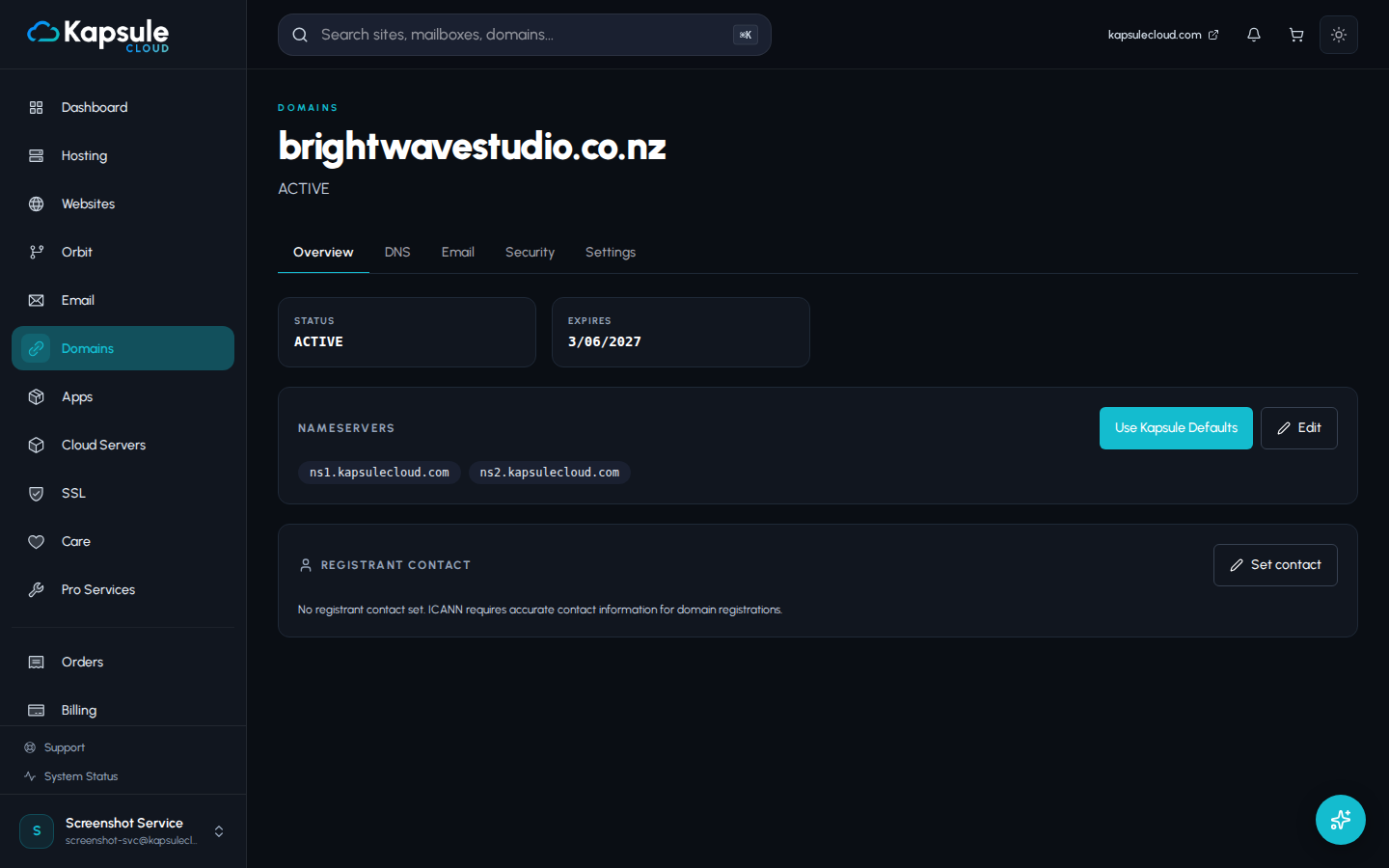
Kapsule's Nameservers
When asked for nameservers by your registrar, enter all four of the following:
ns1.kapsulecloud.com
ns2.kapsulecloud.com
ns3.kapsuledns.com
ns4.kapsuledns.com
Use all four. Having multiple nameservers ensures redundancy: if one server is temporarily unreachable, the others continue answering DNS queries without interruption.
Copy these nameserver addresses directly from this article or from KPanel > Domains > your domain > Nameservers to avoid typos. A single incorrect character will prevent your domain from working.
How to Change Nameservers at Your Registrar
The exact steps vary by registrar, but the process follows the same pattern at every provider.
General Step-by-Step Process
- Log in to the control panel at the registrar where your domain is registered
- Find your domain in your domain list and click on it to open domain settings
- Locate the nameserver settings. This section is labelled "Nameservers", "DNS", "Name Servers", or "Domain Name Servers" depending on the registrar
- Switch to custom nameservers. Most registrars default to their own nameservers. Look for an option to use custom, third-party, or external nameservers
- Delete the existing nameserver entries and replace them with Kapsule's four nameservers:
ns1.kapsulecloud.com ns2.kapsulecloud.com ns3.kapsuledns.com ns4.kapsuledns.com - Save the changes. The registrar will apply the update
Some registrars require exactly two nameservers. If you encounter a form that only accepts two, enter ns1.kapsulecloud.com and ns2.kapsulecloud.com. These two are sufficient for redundancy, but if the registrar accepts four, enter all four.
Propagation: What to Expect and When
After saving the nameserver change, propagation begins. This is the process of the updated nameserver information spreading across DNS servers around the world.
Propagation Timeline
| Time After Change | What Is Happening |
|---|---|
| 0 to 30 minutes | Change is saved at your registrar. Propagation has not started for most of the world. |
| 30 minutes to 2 hours | Propagating across many regions. Some visitors will see new DNS, others still see old. |
| 2 to 8 hours | Propagated for most internet users worldwide. |
| 8 to 24 hours | Nearly complete propagation globally. |
| Up to 48 hours | Complete propagation, including the most infrequently updated DNS resolvers. |
During propagation, some visitors may reach your site normally, others may see your old site (if one exists elsewhere), and some may receive a DNS error. This is normal and resolves on its own as the change spreads.
The actual propagation speed depends on the TTL value previously set on your domain's NS records. Domains with a TTL of 86400 (24 hours) may take longer than domains with a TTL of 3600 (1 hour). Unfortunately, TTL cannot be lowered after the fact to speed up a nameserver change that is already in progress.
How to Check Whether Nameservers Have Propagated
Method 1: Use a DNS Propagation Checker
Search for "DNS propagation checker" online. These tools query DNS servers in dozens of locations worldwide and show you whether your new nameservers are visible from each location.
Enter your domain name and select NS as the record type. You should see ns1.kapsulecloud.com, ns2.kapsulecloud.com, ns3.kapsuledns.com, and ns4.kapsuledns.com appearing across the majority of locations.
Method 2: Check via Command Line
If you are comfortable with a terminal:
nslookup -type=NS yourdomain.com
or
dig NS yourdomain.com
The output should list Kapsule's four nameservers once propagation is complete.
Method 3: Check in KPanel
Go to KPanel > Domains > your domain. The domain status will update to Active once Kapsule's DNS infrastructure has confirmed the nameservers are pointing to Kapsule.
Protecting Email During a Nameserver Change
This is the most critical concern for anyone with active email at their domain.
When you change nameservers, DNS control transfers to Kapsule. If your email was previously hosted elsewhere, those old MX records (which pointed to your previous mail server) will be replaced by Kapsule's default DNS records. Unless you are also moving your email to Kapsule at the same time, email delivery can be interrupted.
If You Are Moving Email to Kapsule at the Same Time
This is the simplest case. Change the nameservers, wait for propagation, then create your mailboxes in KPanel. Kapsule's MX records are set automatically. Email will begin delivering to Kapsule once propagation is complete.
If You Are Keeping Email at Another Provider
If your email is hosted somewhere else (for example, Google Workspace or Microsoft 365) and you only want to use Kapsule for web hosting, you must manually add your existing email provider's MX records in KPanel after the nameserver change propagates.
Process:
- Before changing nameservers, note down your existing MX records from your current DNS provider. Write down the full hostname and priority value for each MX record.
- Change nameservers to Kapsule.
- After propagation, go to KPanel > Domains > your domain > DNS Records
- Add the MX records from your previous provider exactly as they were
- Also add any TXT records for SPF, DKIM, or DMARC that your email provider requires
Email delivery will be interrupted during the window between nameservers propagating and MX records being correctly configured at Kapsule. To minimise this window, have the correct MX records ready to enter in KPanel as soon as propagation completes. Check propagation frequently during this time and add the records the moment your domain shows as Active in KPanel.
What Happens to Existing DNS Records
When you add a domain to Kapsule and DNS propagation completes, Kapsule's DNS is the authoritative source. Kapsule pre-populates the following records automatically:
- A record pointing the domain to your hosting server
- www CNAME pointing to the root domain
- MX records for Kapsule email (once you create a mailbox)
- SPF and DKIM TXT records for Kapsule email
Any custom DNS records you had at your previous provider are not automatically imported. If you had records pointing to third-party services (for example, a CNAME for Zendesk or a TXT record for Google Workspace), you need to re-add those manually in KPanel after the nameserver change.
Before changing nameservers, export or write down all your existing DNS records. Log in to your current DNS provider and screenshot or copy every record. This ensures you have a reference to recreate any custom records you need in KPanel after the change. Do not skip this step.
Step-by-Step Summary
For quick reference, here is the complete process in order:
- Document all existing DNS records at your current provider
- Add your domain to KPanel (Domains > Add Domain)
- Note the nameservers shown in KPanel for your domain
- Log in to your domain registrar
- Update nameservers to Kapsule's four nameservers
- Save the changes at your registrar
- Wait for propagation (2 to 8 hours typically, up to 48 hours)
- Check propagation using a DNS checker or KPanel domain status
- Re-add any custom DNS records in KPanel (third-party services, external email MX records)
- Create your site and mailboxes in KPanel once the domain shows as Active
Frequently Asked Questions
Do I need to transfer my domain to Kapsule? No. You only need to update the nameservers. Your domain stays registered at its current registrar. Kapsule only takes over DNS management.
Can I switch back if I change my mind? Yes. You can update nameservers back to your previous provider at any time. The same propagation period applies.
What if my registrar charges to change nameservers? This would be very unusual. Changing nameservers is a standard feature of every domain registrar and should be free. If your registrar charges for this, consider transferring the domain.
My registrar says custom nameservers require purchasing a "DNS hosting" add-on. Some budget registrars bundle nameserver management with paid plans. If this is the case, you can point to Kapsule's nameservers without paying extra, as nameservers are set at the registrar level, not at the DNS hosting level. If your registrar is truly blocking custom nameservers without an upgrade, contact support at support@kapsulecloud.com for guidance.
I changed nameservers three days ago and the domain still shows as Pending in KPanel. Double-check the nameserver values at your registrar. Log in and view the current nameserver settings. Confirm all four nameservers are entered exactly as listed above with no extra characters, no trailing dots, and no substitution of one nameserver for another. A single typo in any nameserver address will prevent propagation.